How to transfer stock between branches in Compazz
Send stock from one outlet to another with a clear record of what was requested, sent and received. Stock only moves when the receiving branch accepts.
Why it matters
Move stock to where it sells, without losing track of it on the way.
Sell more, buy less
Move slow stock from one branch to another where it sells, instead of buying more.
Nothing lost in transit
Stock leaves the sender’s count only when the receiver accepts it.
A paper trail
Who sent it, who received it, what arrived and the value, on every transfer.
What you’ll be able to do
- Create and submit a transfer
- Track pending transfers
- Accept stock at the destination
Create the transfer
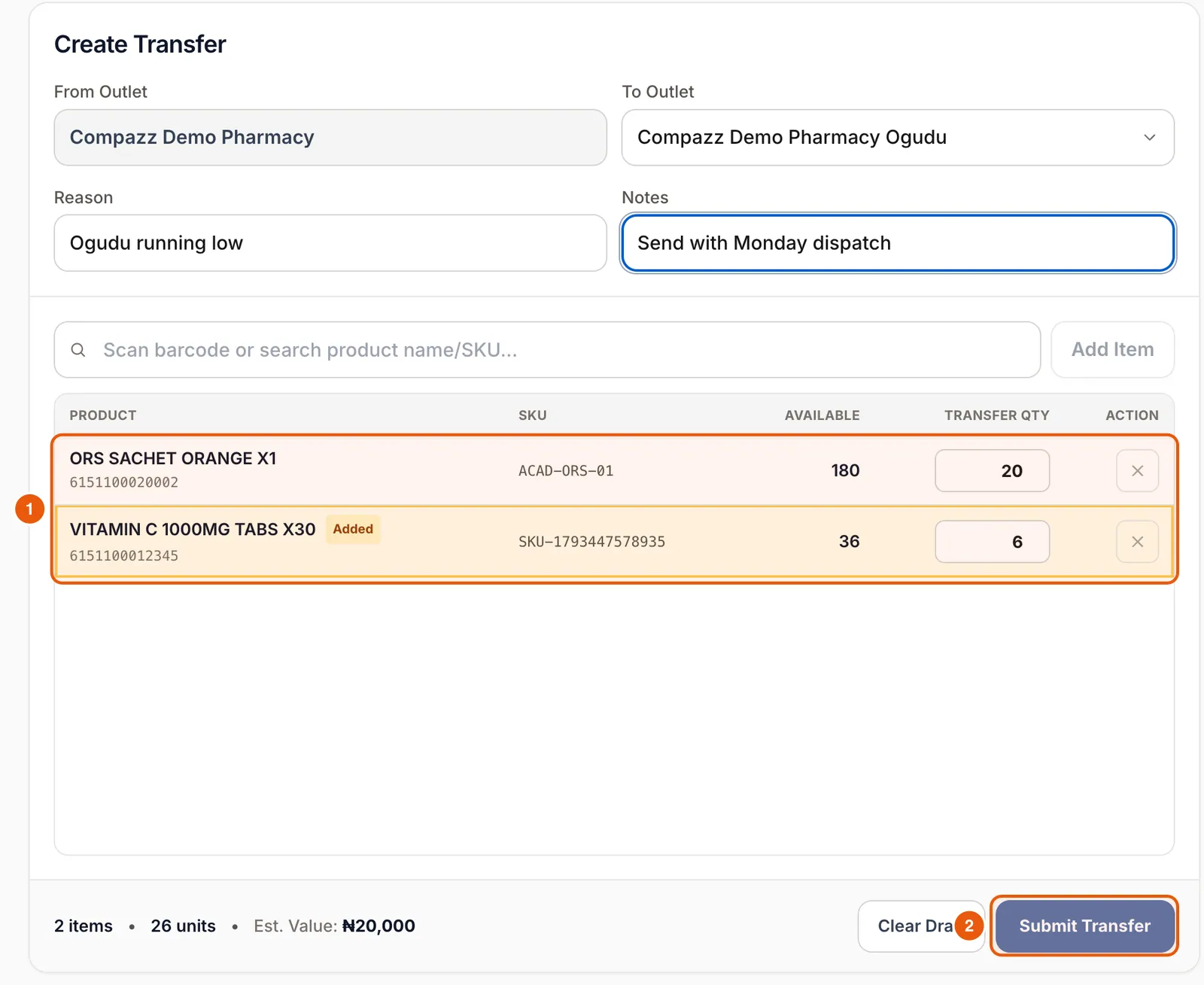
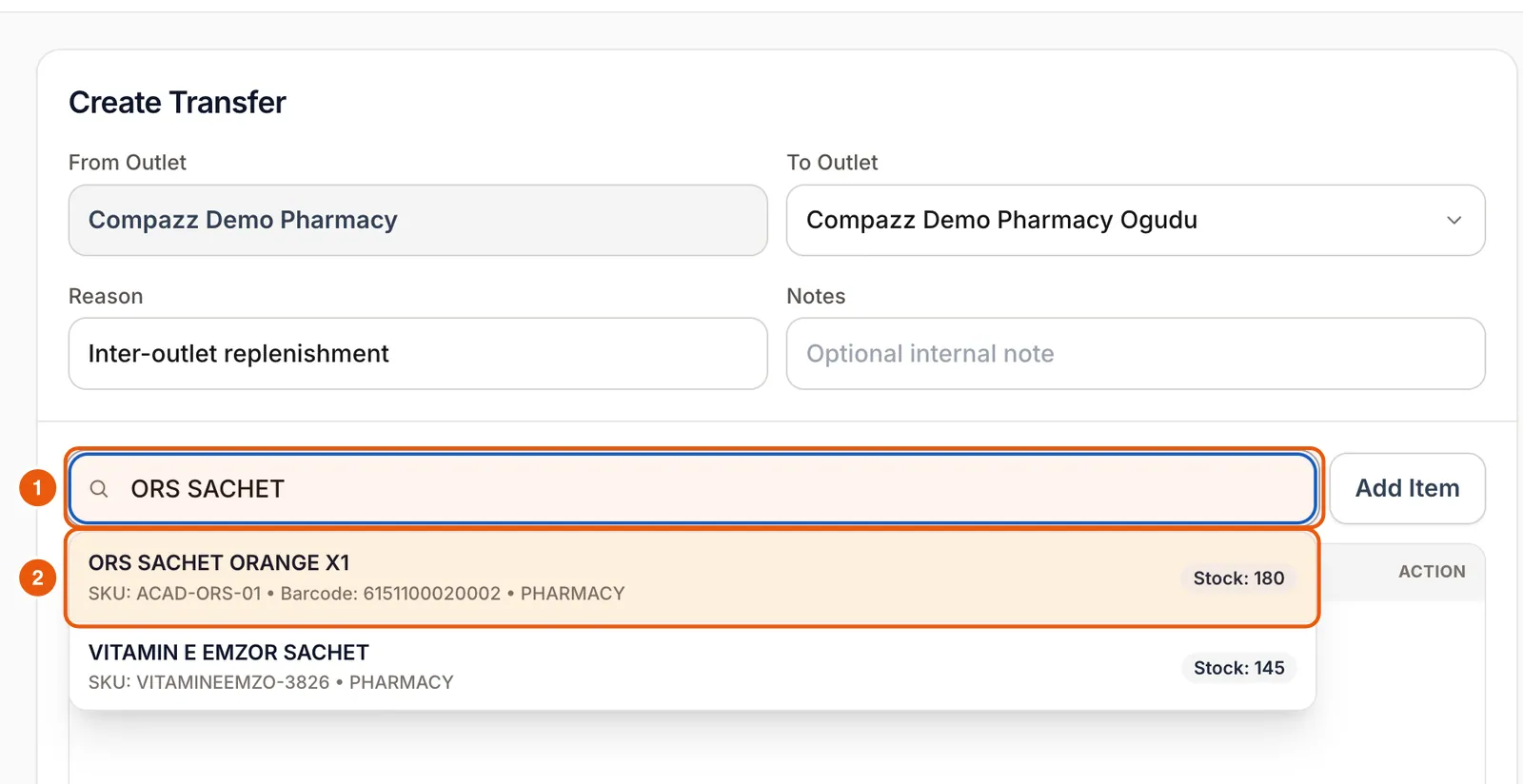
- 1Open Transfer Outlet. From Outlet is your current branch. Choose the destination in To Outlet.
- 2Pick a Reason and add Notes for the receiving team.
- 3Scan or search each product, then set the Transfer Qty (it cannot exceed Available).
- 4Check the items, units and estimated value, then tap Submit Transfer.
Track it
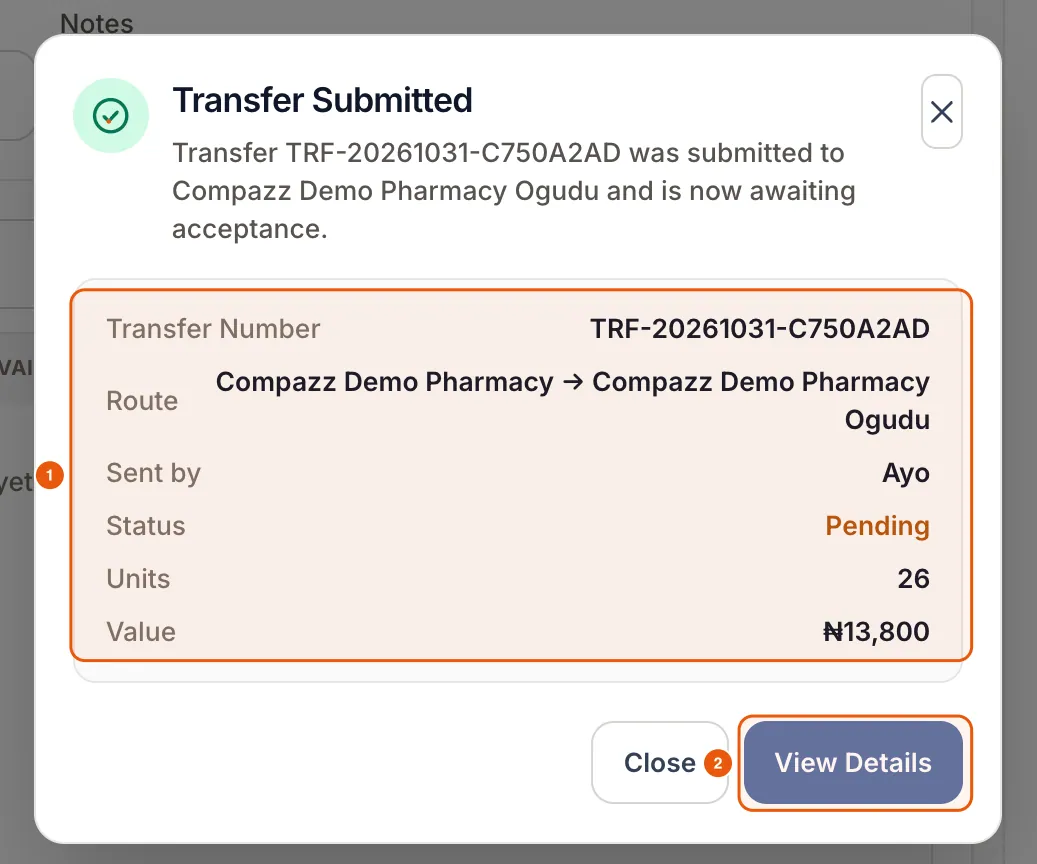
You get a transfer number straight away. The transfer is Pending until the destination accepts it. Recent Transfers lists every transfer as Outgoing or Incoming with its status.
Accept at the destination
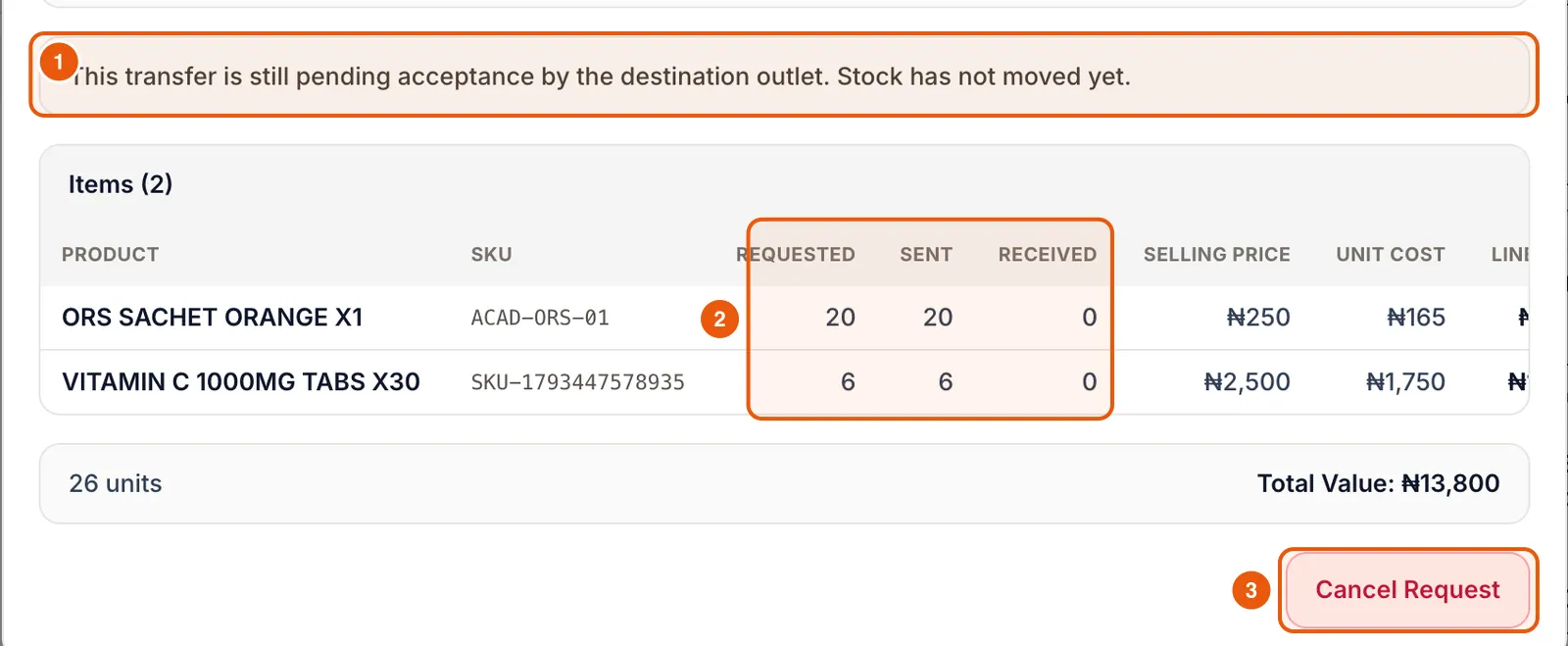
At the receiving branch, open Transfer Outlet, find the incoming transfer, check the goods against the list and tap Accept Transfer. Only then does stock move. The sender can Cancel a pending transfer.
Frequently asked questions
Why hasn’t the stock left my branch yet?
Transfers move stock only when the destination accepts them. Until then it stays in your count and the transfer shows Pending.
Can I transfer to a branch on another account?
No. Transfers work between outlets in the same Compazz business.
Ready to do this in your own shop?
Start free and follow this guide step by step, or book a call and we’ll set it up with you.
Keep learning