How to receive inventory from a supplier in Compazz POS
Turn a supplier invoice into accurate stock: pick the supplier, scan lines with quantities, check costs and selling prices, capture expiry, then receive and print labels.
Why it matters
The receiving desk is where stock accuracy is won or lost.
Pay for what arrived
Record the quantities that actually arrived, not what was ordered, and keep unpaid invoices with a due date.
Margins that update themselves
New costs update your average cost, and the Price Change Report shows which items moved.
Shelf-ready in one pass
Expiry dates, new products and shelf labels all happen on the same screen.
What you’ll be able to do
- Record supplier and invoice details
- Add lines by barcode, name or as new products
- Check cost, selling price and expiry
- Receive into inventory and print labels
- Find, review or void past invoices
Check the delivery first
Count cartons against the delivery note, put damaged or expired goods aside and note shortages. Only receive what you can sell.
Enter the invoice details
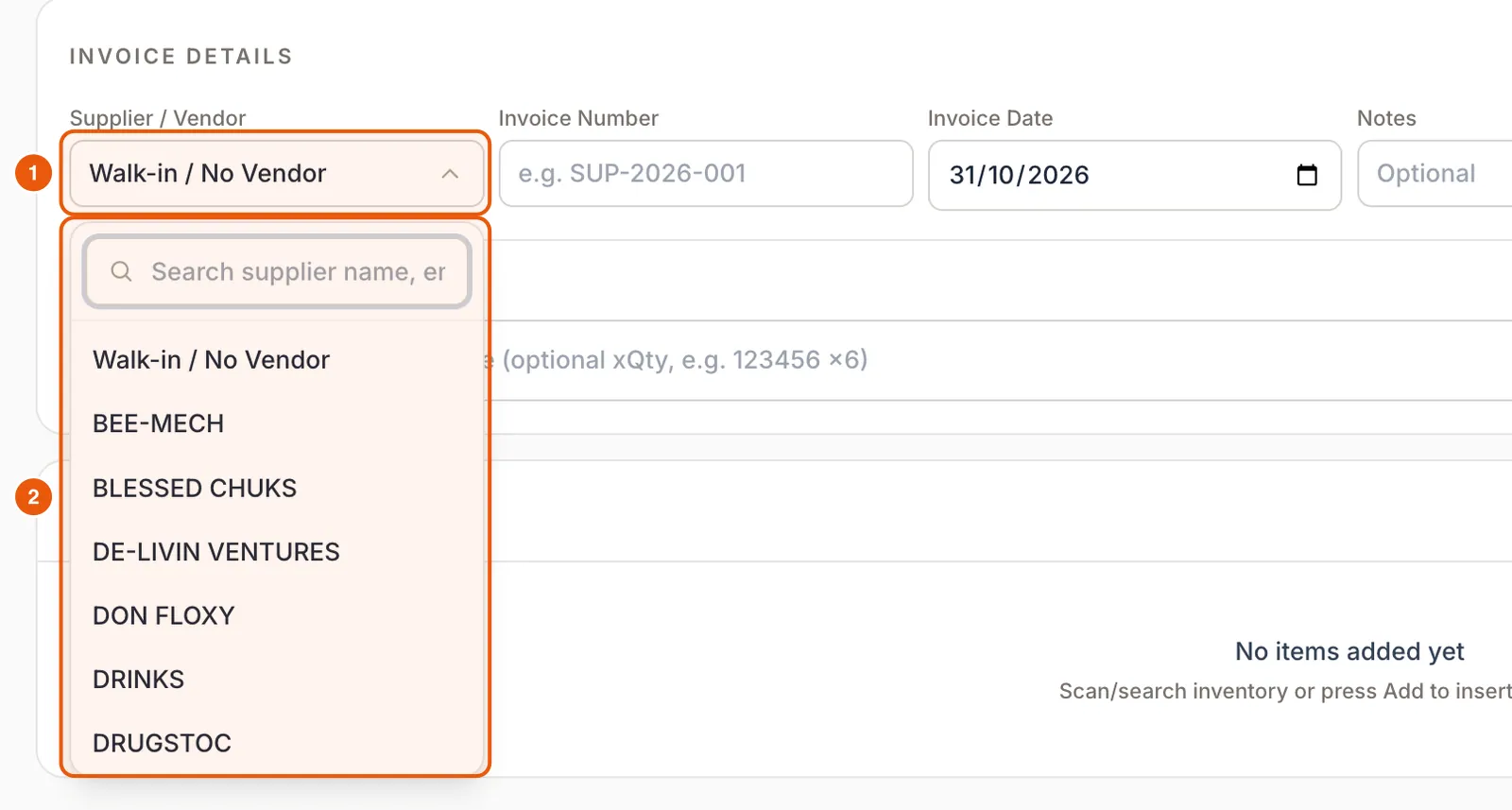
No supplier? Leave “Walk-in / No Vendor” for market purchases.
- 1Open Receive Items. Choose the supplier from Supplier / Vendor (search by name), or Add Supplier for a new one.
- 2Type the supplier’s invoice number and check the invoice date.
- 3Set Payment Status. If you will pay later, choose Unpaid and enter the Payment Date it is due.

Add lines with Fast Receive
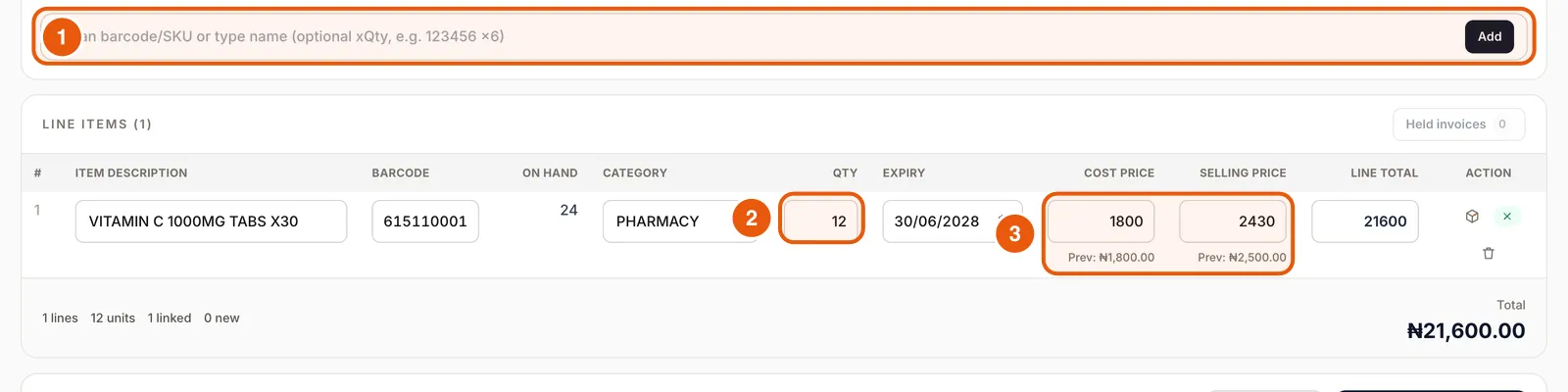
Fast Receive accepts a barcode, SKU or name, with an optional quantity: “6151100012345 x12” adds 12 in one go. Type a name to pick from matching products.

Receiving something new? Add a blank row
Click Add with the box empty to insert a blank row, then type the name, barcode and department. Unlinked lines create new products automatically when you receive.
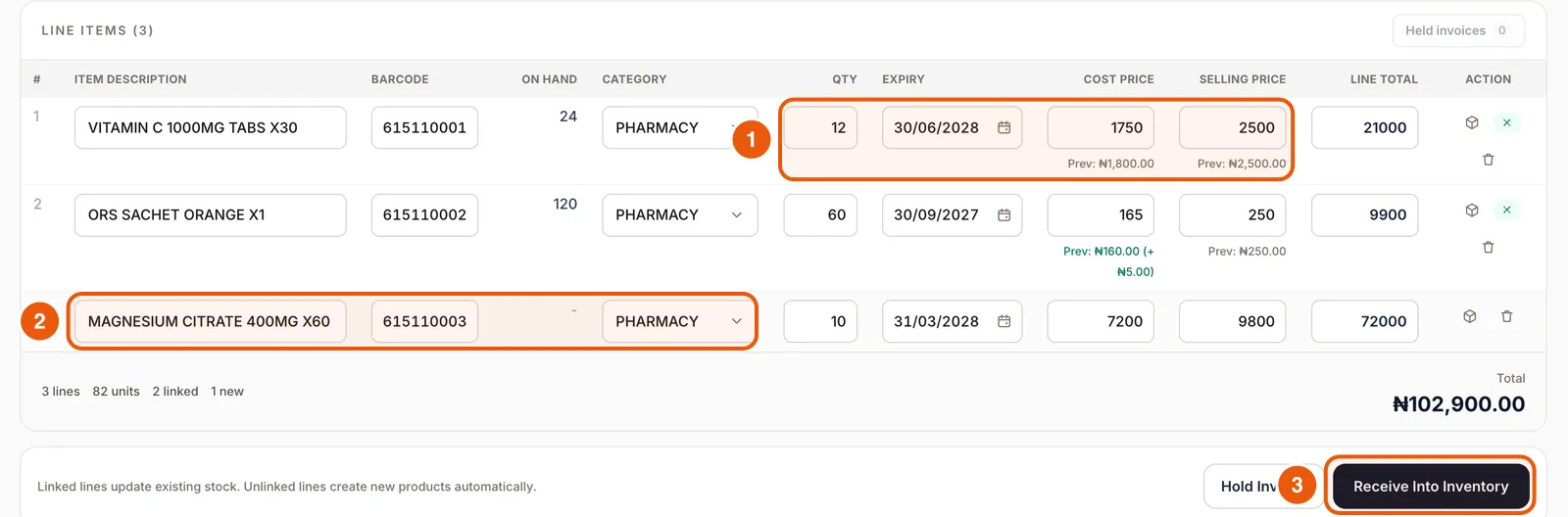
Check quantity, expiry, cost and selling price
The line total and invoice total update as you type, so they should match the supplier’s invoice before you continue.
- 1Enter the quantity that arrived and the expiry date on each line.
- 2Enter the cost from the invoice. “Prev:” under the field shows the last cost, so you can spot price increases.
- 3Check the selling price. Compazz may suggest one from your department markup, so overwrite it if you keep a fixed shelf price.
Receive into inventory
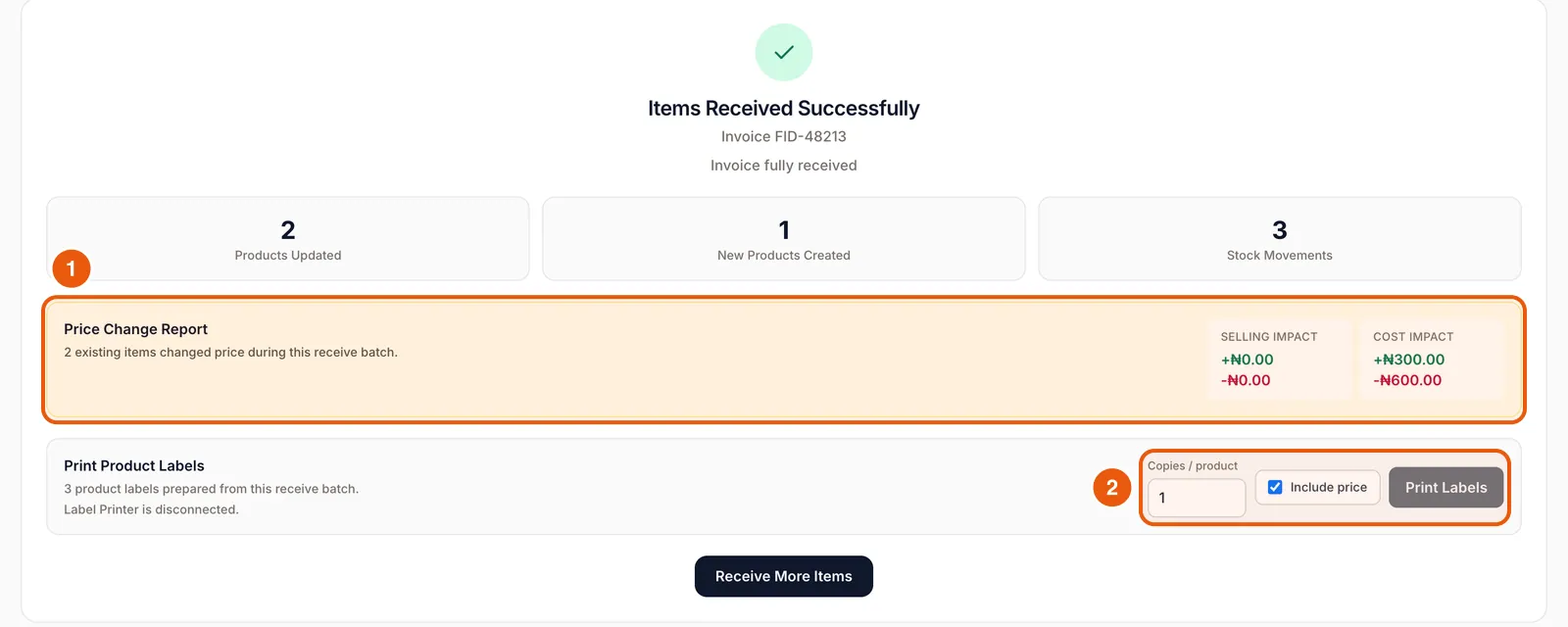
Tap Receive Into Inventory. Not finished? Hold Invoice saves it under Held invoices to finish later. When it is done you get a summary of products updated, new products created and stock movements, plus a Price Change Report and label printing.
Find and review past invoices
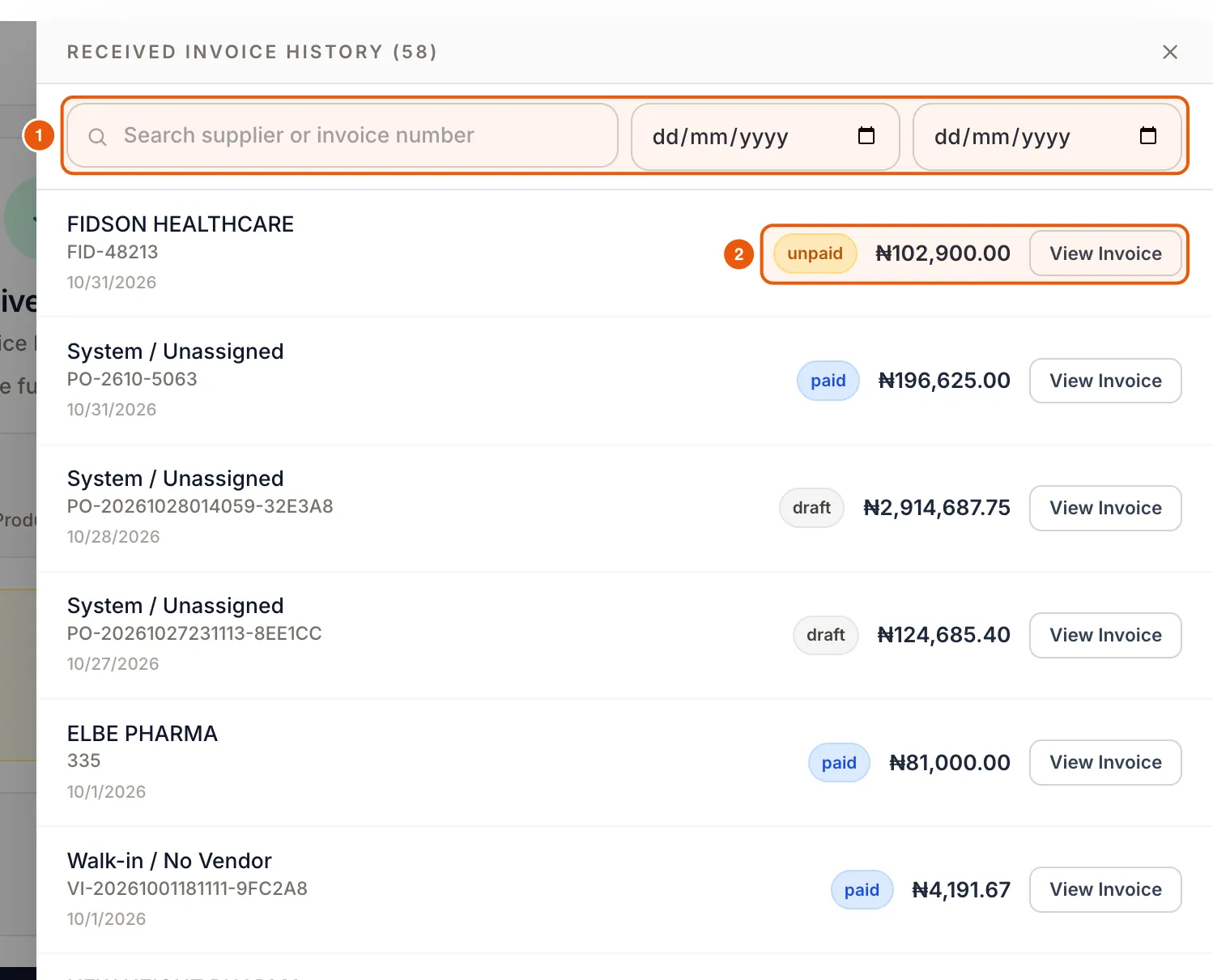
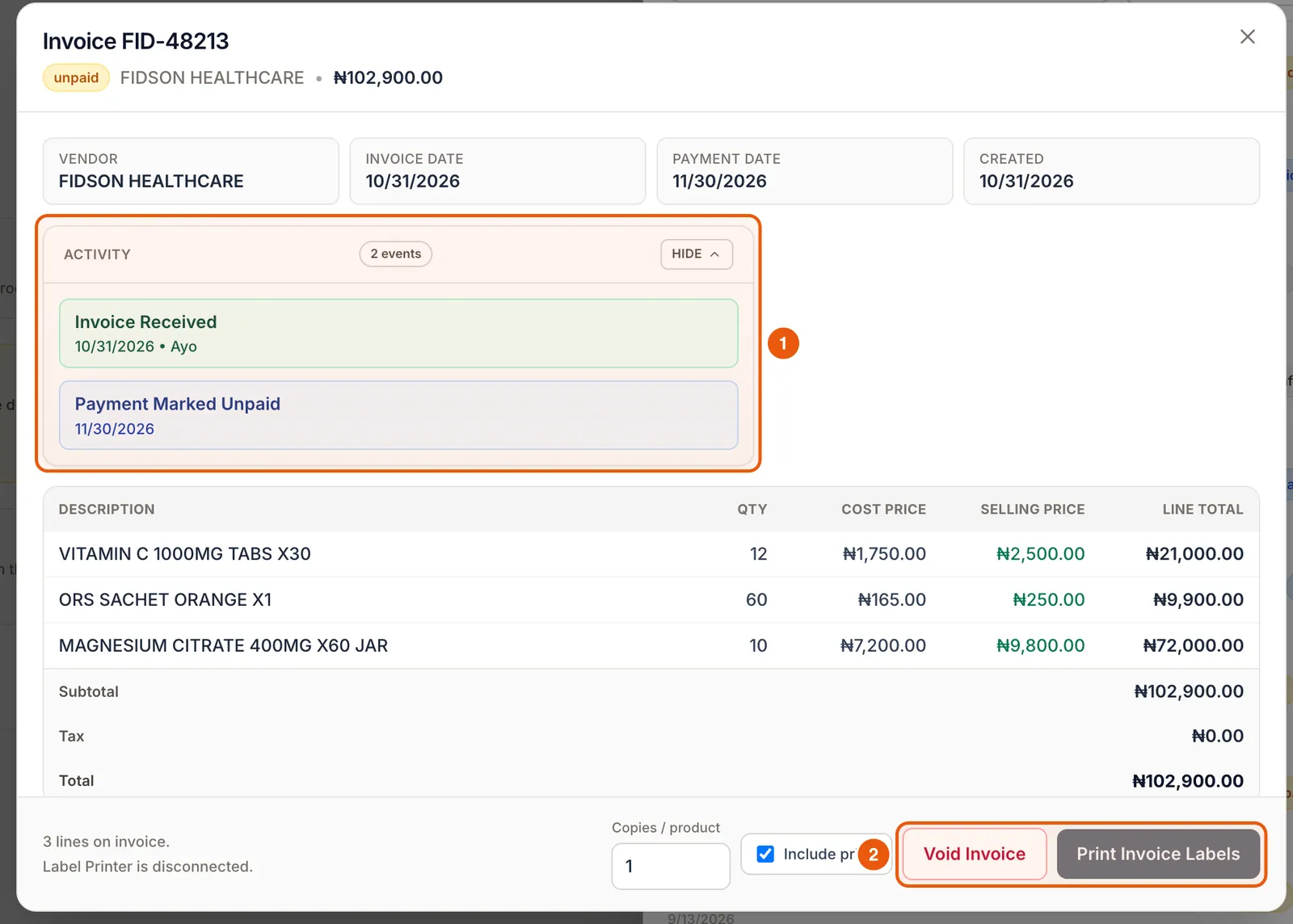
Tap History to search invoices by supplier or number and date. Each one shows its status (paid, unpaid, draft) and total. View Invoice shows the lines, activity and Void Invoice for mistakes.
Frequently asked questions
What if the supplier delivered less than I ordered?
Receive only what arrived. If you created a purchase order in Purchasing, receive against it there and it stays open for the rest.
Can I receive stock without a supplier?
Yes. Use Walk-in / No Vendor for market or cash purchases.
How do I track what I owe suppliers?
Mark invoices Unpaid with a payment date. They are listed as unpaid in History until you update them.
Ready to do this in your own shop?
Start free and follow this guide step by step, or book a call and we’ll set it up with you.
Keep learning