How to take WhatsApp and Instagram orders and get paid
Turn a customer chat into a tracked order in under a minute: add the customer and items, set delivery, record or request payment, then move it across the order board.
Why it matters
Chats are where your customers already are. Stop losing orders in the scroll.
No more lost orders
Every chat order becomes a card on the board with its status.
Get paid first
Send a secure payment link, or record a transfer or cash as received.
Stock stays right
Chat orders come from the same stock as your counter.
What you’ll be able to do
- Create an order from a chat
- Choose how the customer pays
- Move orders from Pending to Delivered
Create the order
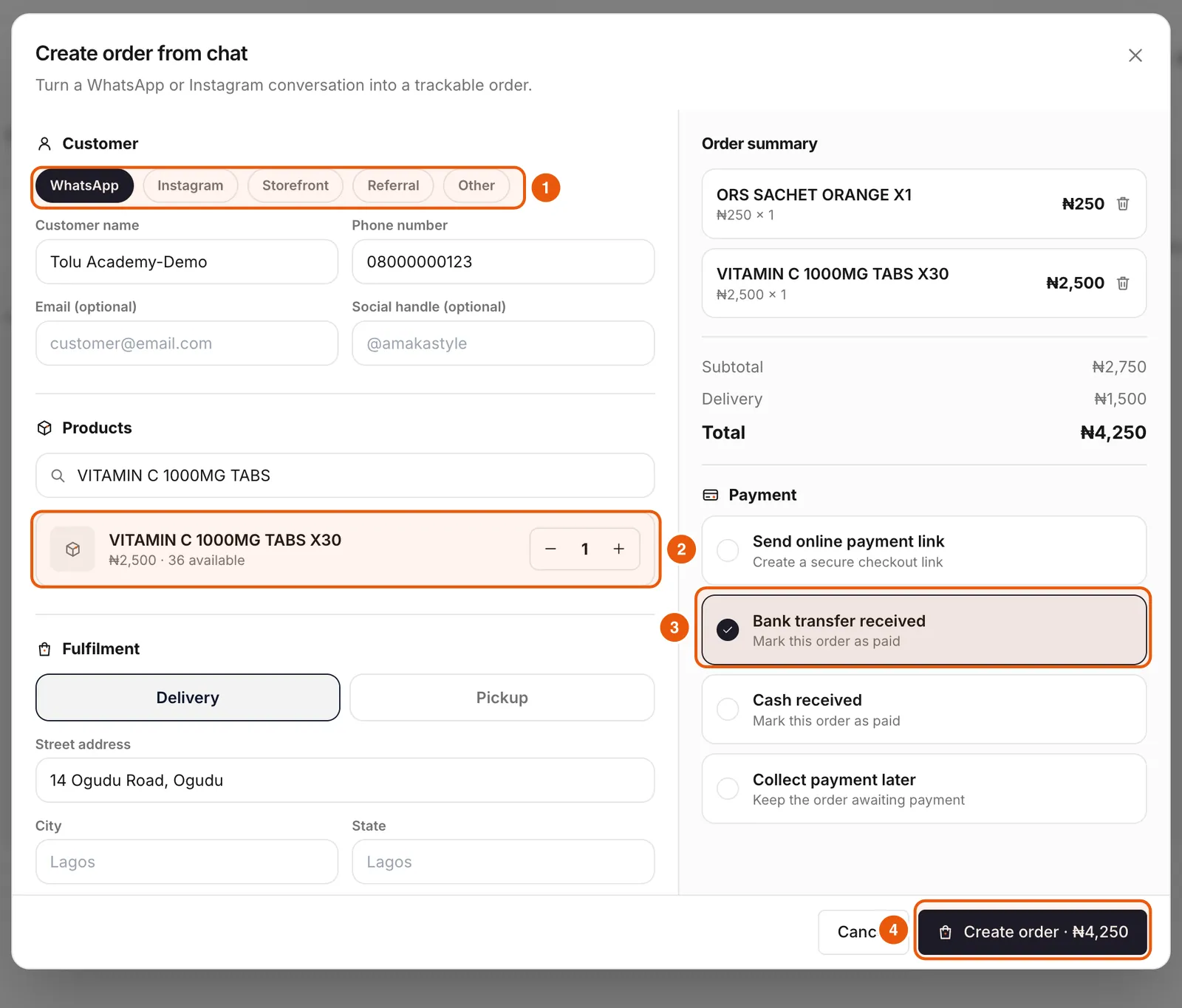
- 1In Online Store, tap Create order.
- 2Pick the channel: WhatsApp, Instagram, Storefront, Referral or Other.
- 3Enter the customer’s name and phone (email and social handle are optional).
- 4Search products and tap Add. Use − and + for quantities.
- 5Choose Delivery (with street, city, state and fee) or Pickup, and add any notes.
Choose how it is paid
Then tap Create order. The button shows the order total.
- Send online payment link: creates a secure checkout link to paste into the chat.
- Bank transfer received: marks the order paid when you have the transfer alert.
- Cash received: for pay-on-pickup or pay-on-delivery collected.
- Collect payment later: keeps the order awaiting payment.
Move orders across the board
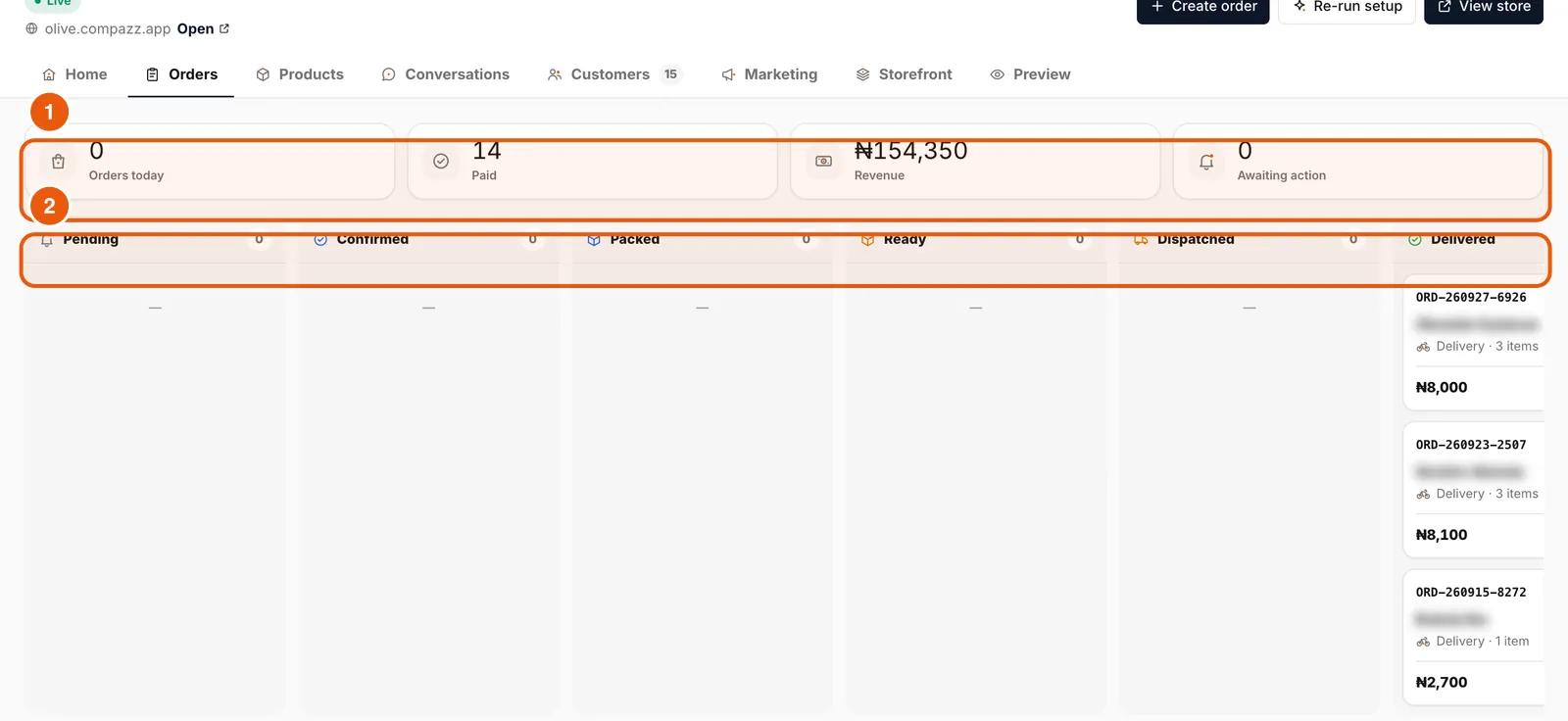
The Orders tab is a board with Pending, Confirmed, Packed, Ready, Dispatched and Delivered columns, plus today’s orders, paid count, revenue and anything awaiting action.
Frequently asked questions
Do customers need an account to pay?
No. Payment links and store checkout need only the customer’s name and phone number.
Ready to do this in your own shop?
Start free and follow this guide step by step, or book a call and we’ll set it up with you.
Keep learning