Compazz POS tabs explained: a tour of every screen
What each tab in Compazz POS does, who should use it and when: Register, Transactions, Items, Purchasing, Receive Items, Stocktaking, Transfer Outlet, End of Day, Pharmacy Patients and Settings.
Why it matters
One app for the counter, the stockroom and the close.
No more five tools
Selling, receiving, counting, transferring and reconciling all happen in the same POS, on the same stock numbers.
Everyone sees only their job
Tabs follow the staff type, so a cashier never lands in purchasing and a pharmacist gets Patients.
Owner visibility everywhere
Everything done at the counter feeds the dashboard reports in real time.
What you’ll be able to do
- Know what every POS tab is for
- Decide which staff need which tabs
- Find the right guide for each job
Open the menu
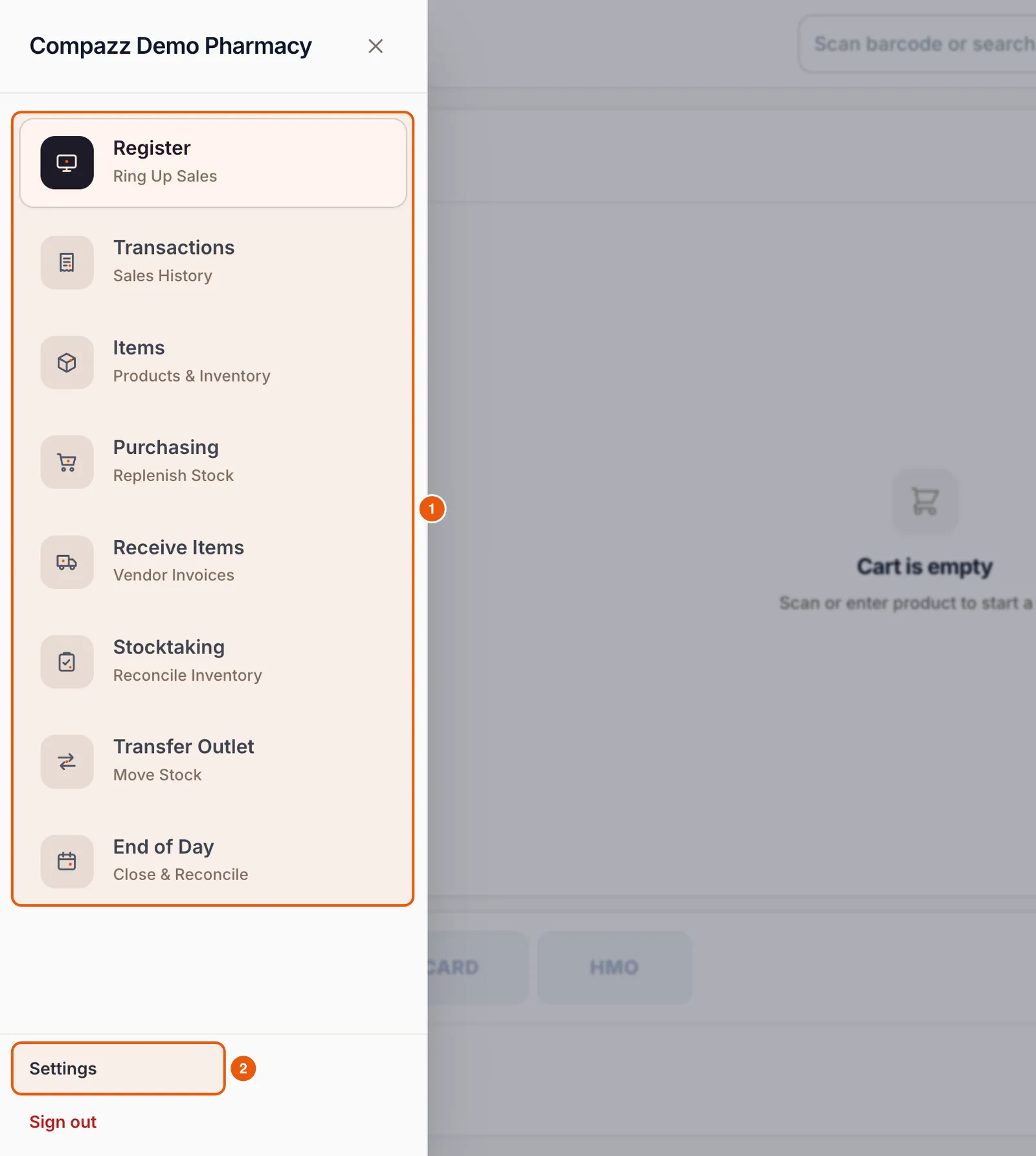
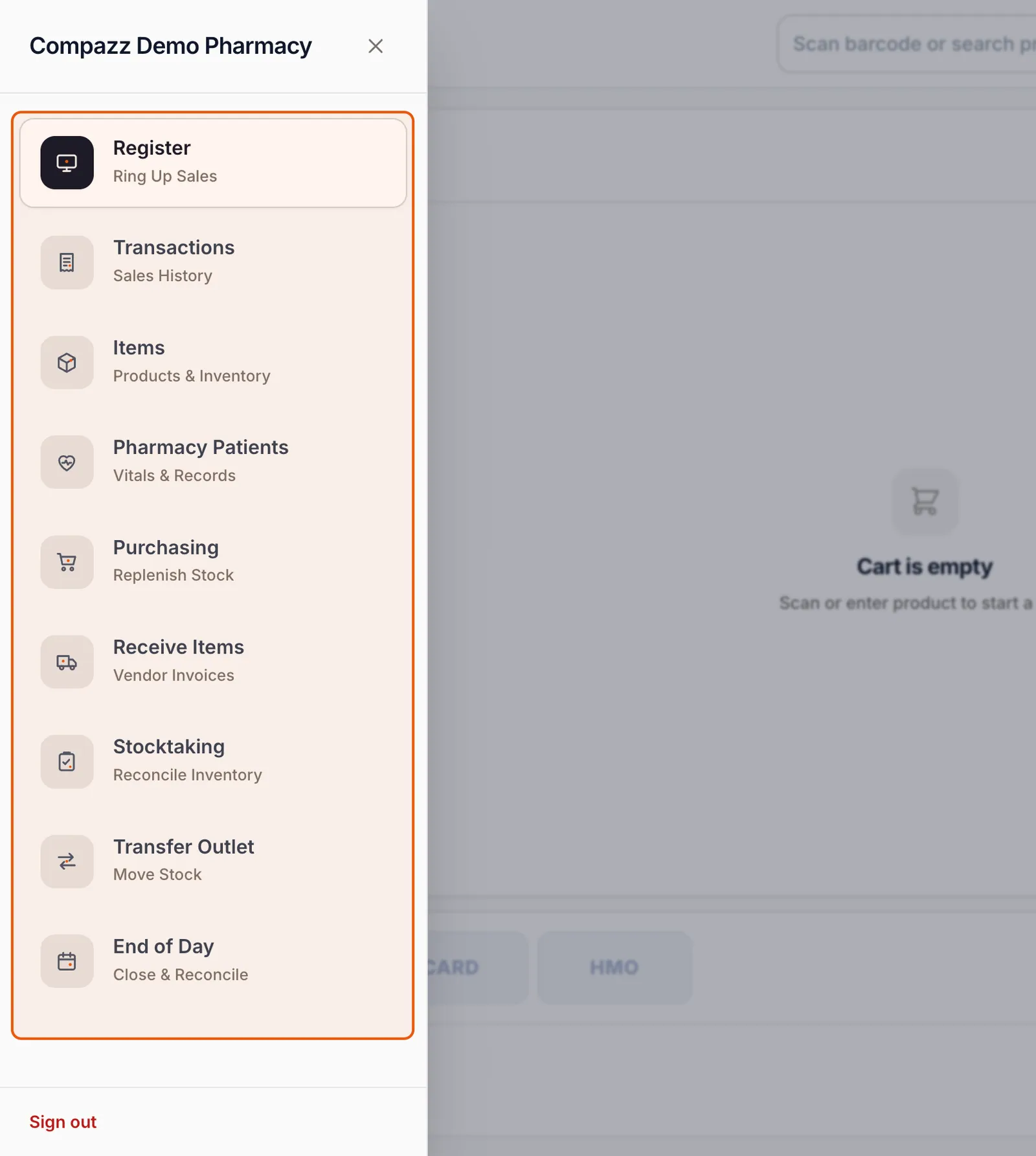
Tap the ☰ icon in the top-left corner of the POS to see every tab you are allowed to use. The list changes with your staff type: here is a pharmacist’s menu next to a manager’s.
Register: ring up sales
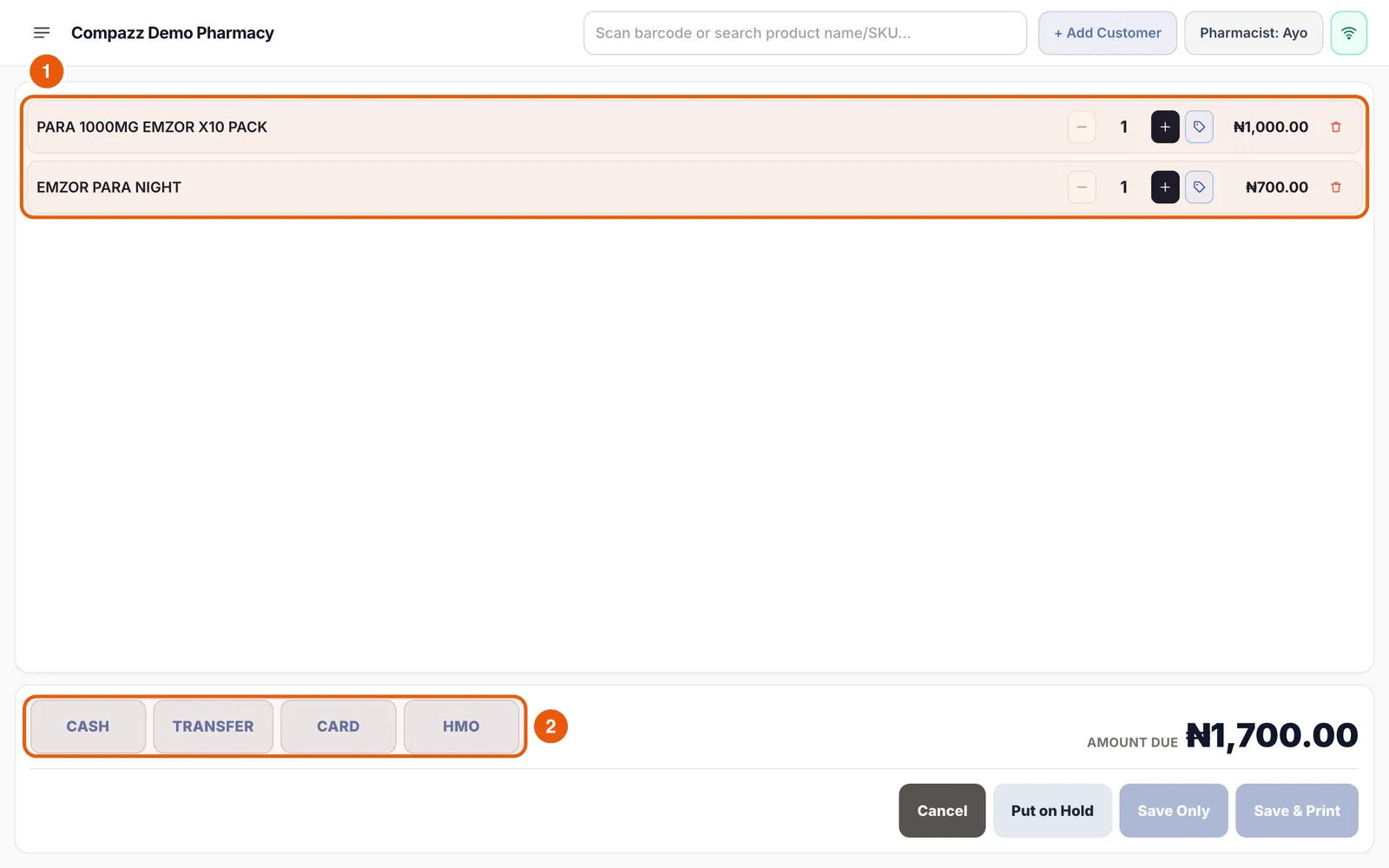
The checkout. Scan or search products, adjust quantities, apply line discounts, attach a customer or patient, take cash, transfer, card or HMO payments (or a mix), hold a basket for later and print or skip the receipt.
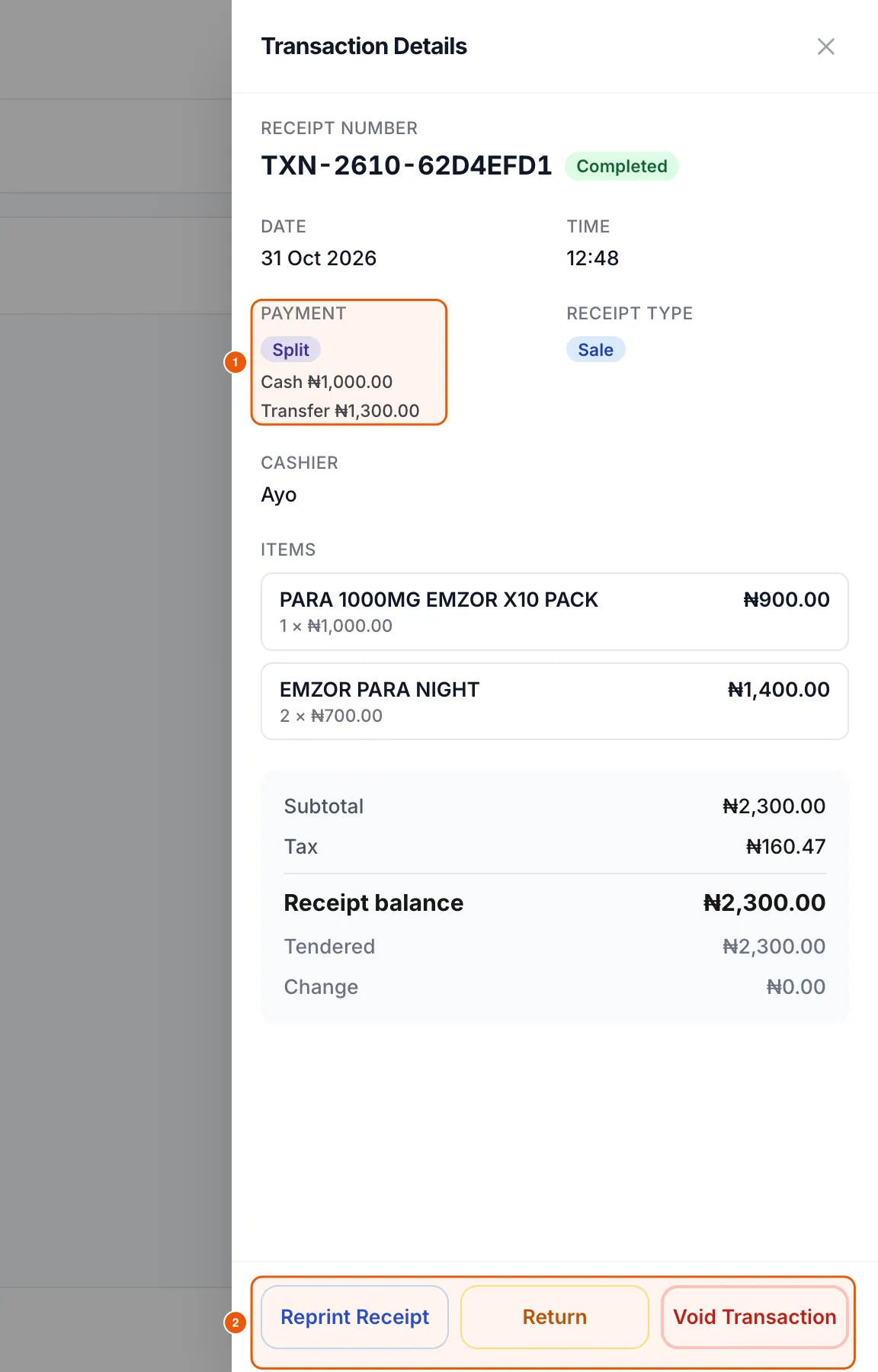
Transactions: sales history, reprints and returns
Every saved sale, filterable by date, payment method and status. Open a receipt to reprint it, process a return or void it (with permission).

Items: products and inventory
Your catalogue: add, edit and import products, set reorder levels, manage packs and expiry dates, view each item’s full stock history and act on stock that is about to expire.
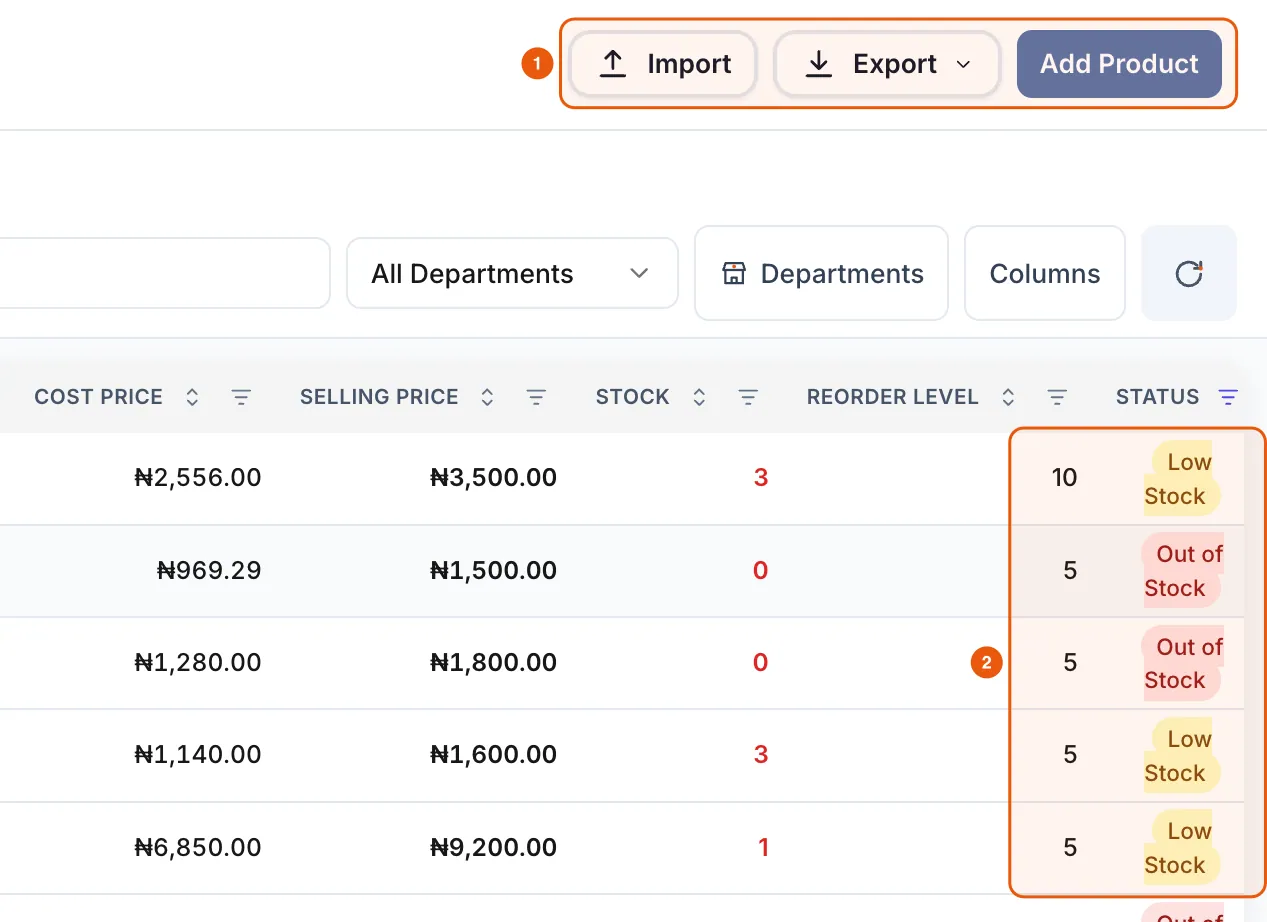
Purchasing: what to reorder
Compazz ranks products by how fast they sell and how many days of stock you have left, then turns your picks into a purchase list or draft purchase orders.

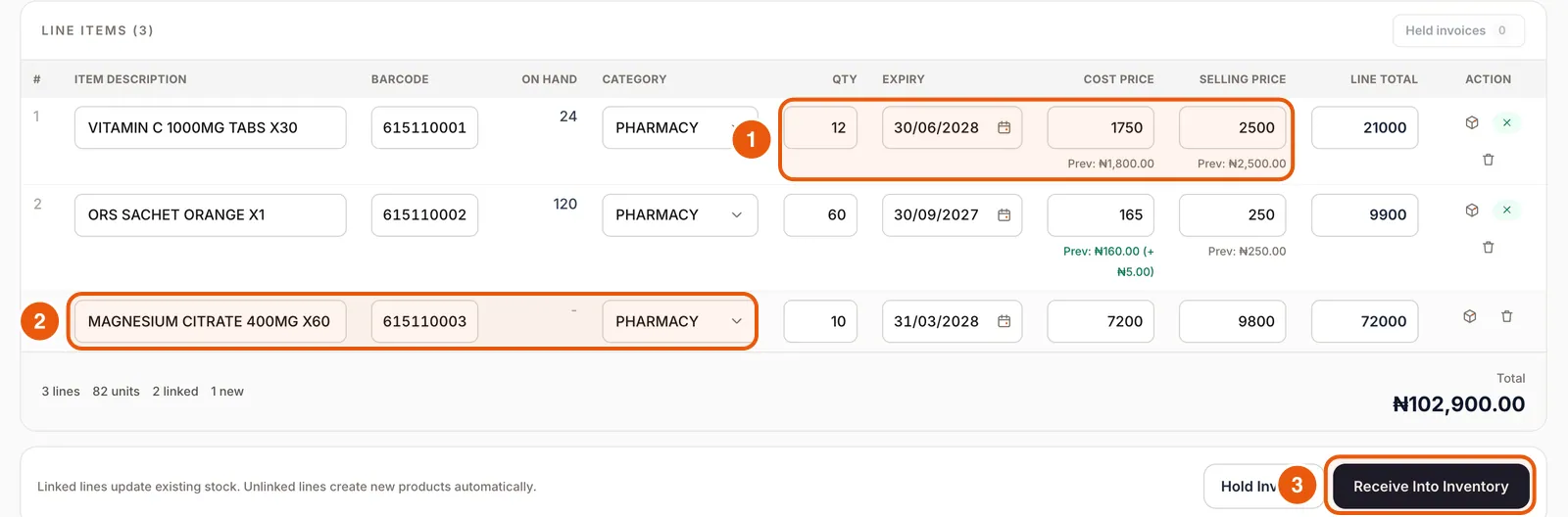
Receive Items: supplier deliveries
Turn a supplier invoice into stock in a few scans: quantities, costs, selling prices and expiry dates, with a price-change report and labels at the end.
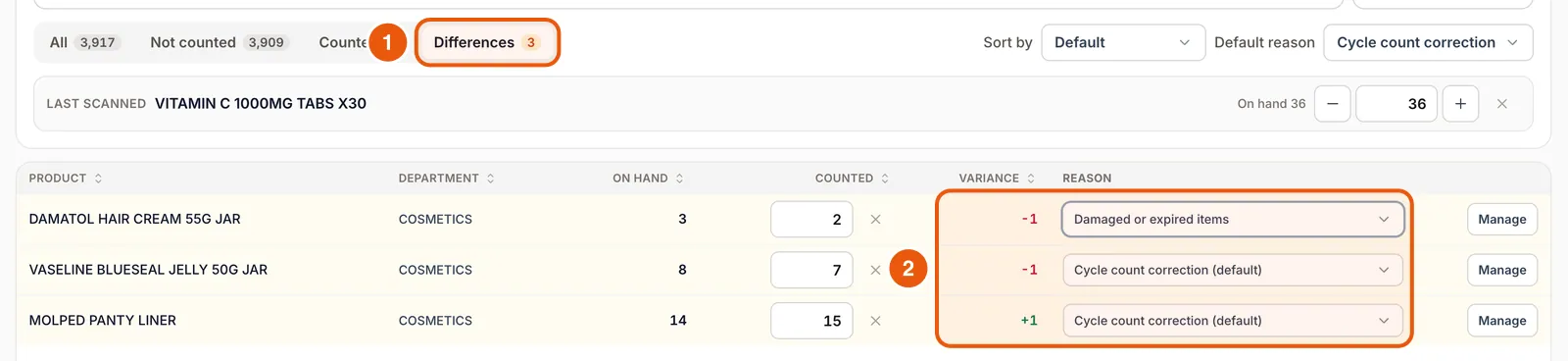
Stocktaking: count and correct
Count by department or scan item by item, see variances instantly, give each difference a reason, then apply the count in one step.
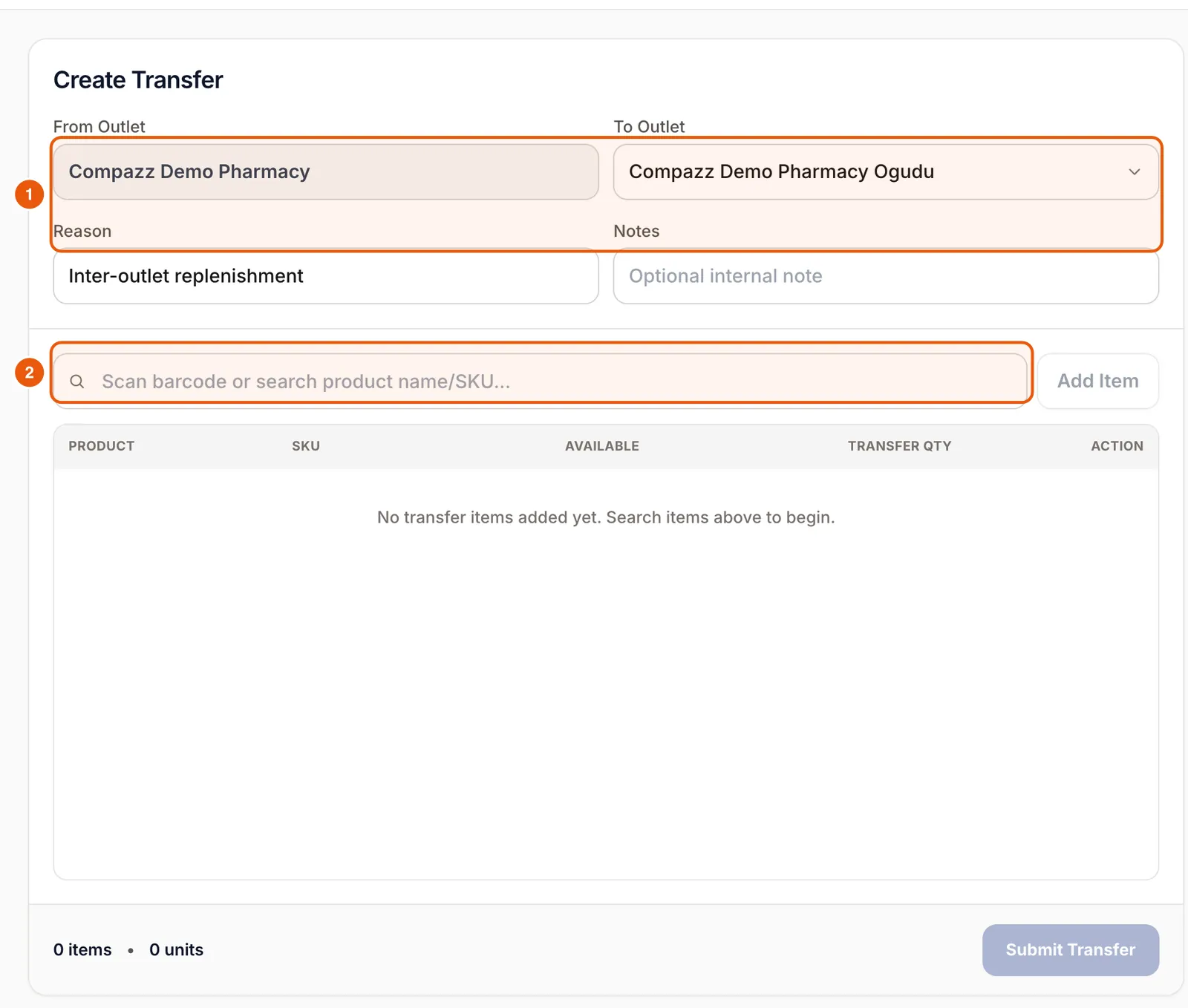
Transfer Outlet: move stock between branches
Send stock to another branch. Stock only moves when the receiving branch accepts, so nothing disappears in transit.
End of Day: close and reconcile
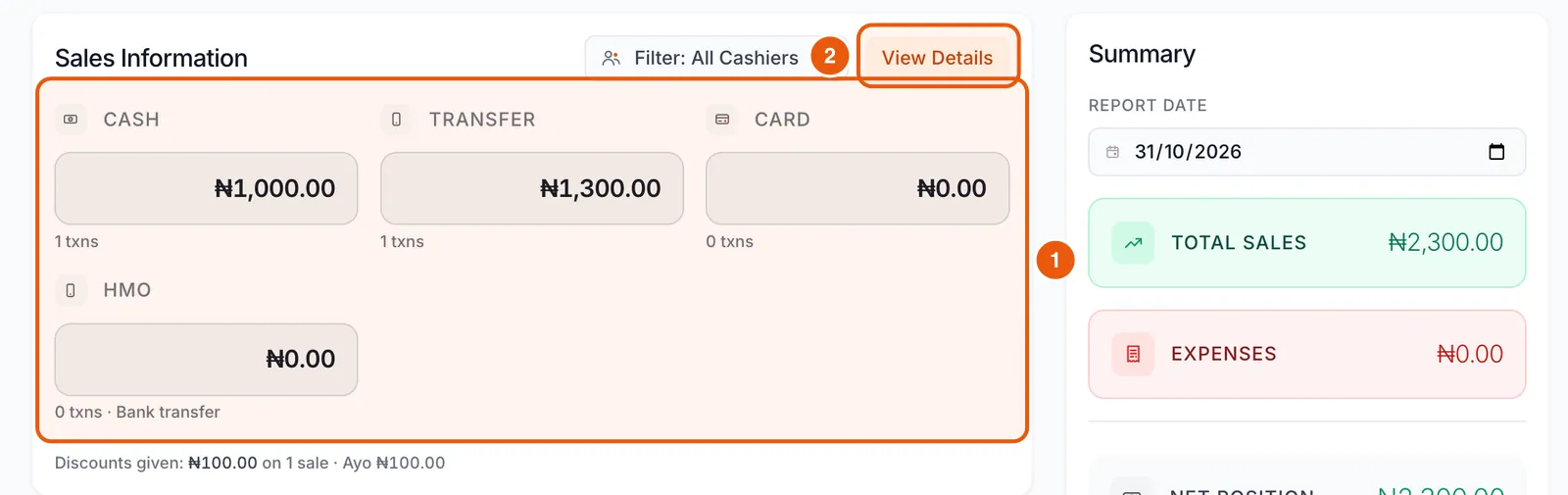
Sales by payment method, expected cash, the cash you counted, expenses and notes, saved as a report the owner can review from anywhere.
Pharmacy Patients and Settings
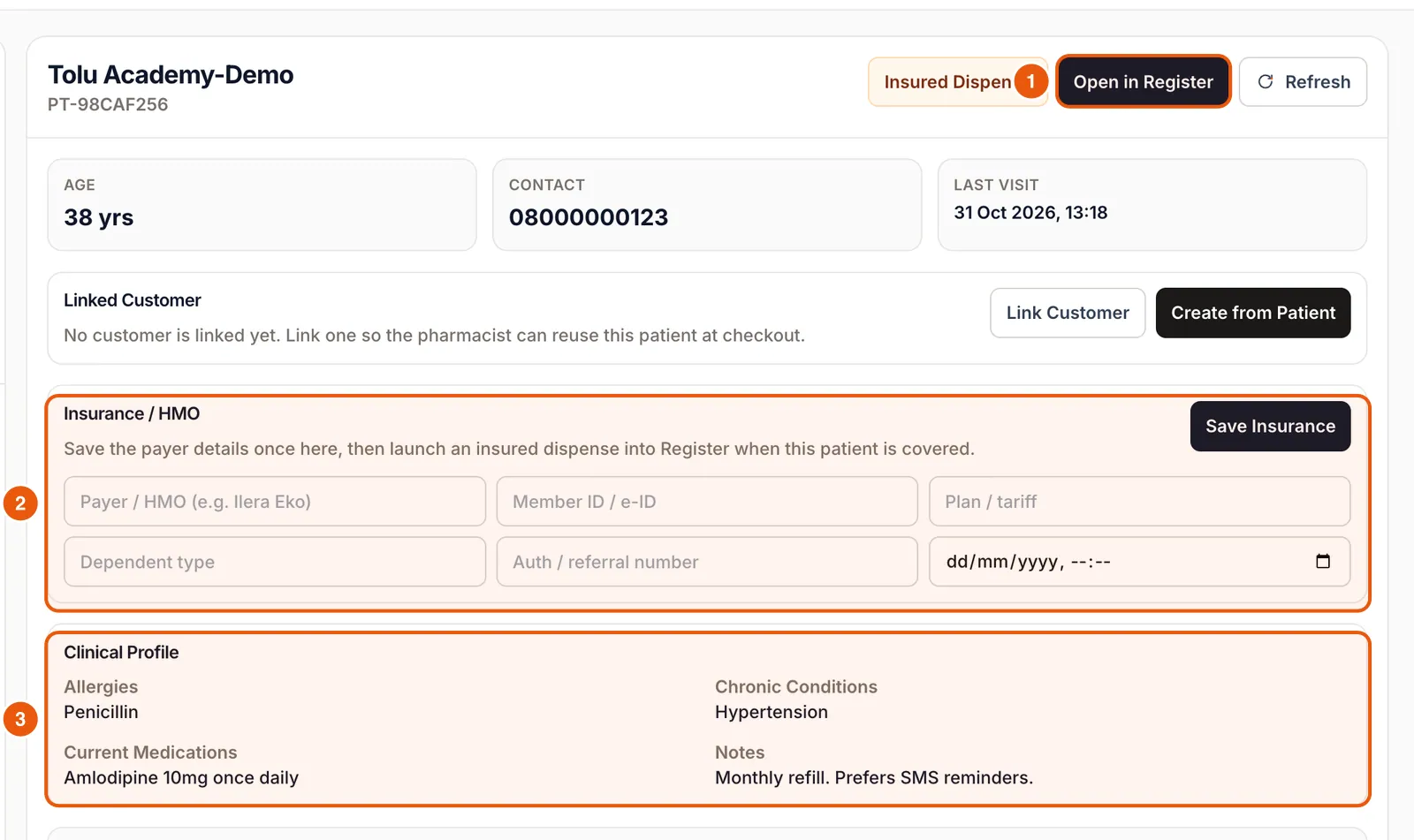
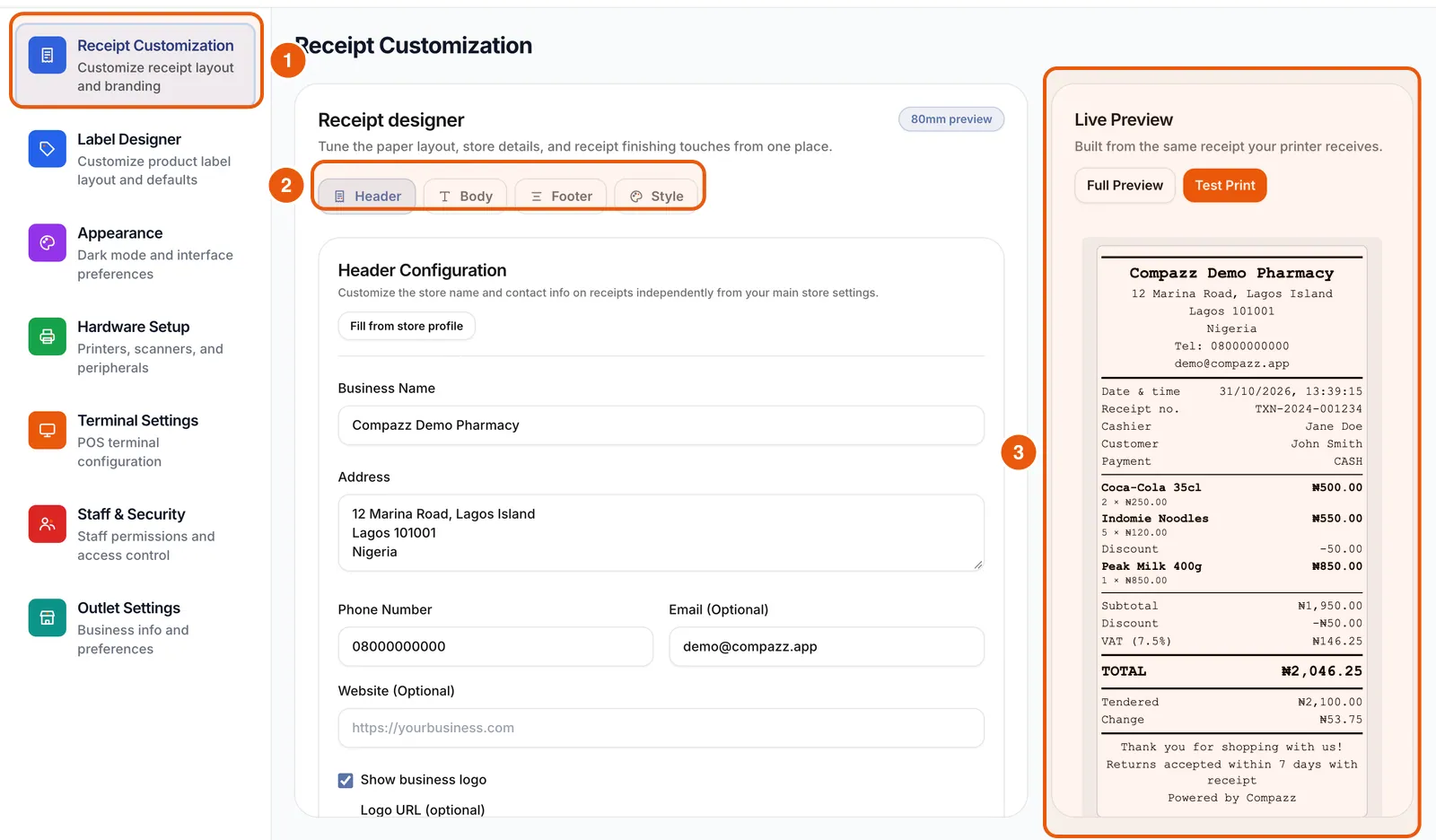
Pharmacies get patient records with vitals, insurance, dispensing labels and refill reminders. Managers get Settings for receipts, printers, scanners, appearance, terminal and staff security.
Frequently asked questions
Why can’t I see a tab my colleague has?
Tabs follow staff permissions. A manager or owner can turn tabs on for your staff type in Settings → Staff & Security → Manage permissions.
Is there a Butchering tab?
Yes, for meat and processing businesses. It appears only when it is enabled for the outlet.
Ready to do this in your own shop?
Start free and follow this guide step by step, or book a call and we’ll set it up with you.
Keep learning