How to set up your online store with Compazz
Launch a store link customers can order from: choose your address, brand it, publish products from your POS catalogue, set delivery, connect payouts and share it on WhatsApp.
Why it matters
Your shop, open 24/7, running on the same stock as your counter.
One stock count
Products, prices and stock come from your POS, so you never sell online what is gone from the shelf.
Paid before you pack
Customers pay securely at checkout and the money settles into your verified bank account.
A link for every chat
Drop your store link in WhatsApp status, Instagram bio and Google profile.
What you’ll be able to do
- Run the setup wizard
- Publish products and add photos
- Brand your storefront and set delivery
- Connect bank payouts
- Preview, test and share your store
Step 1: Basics
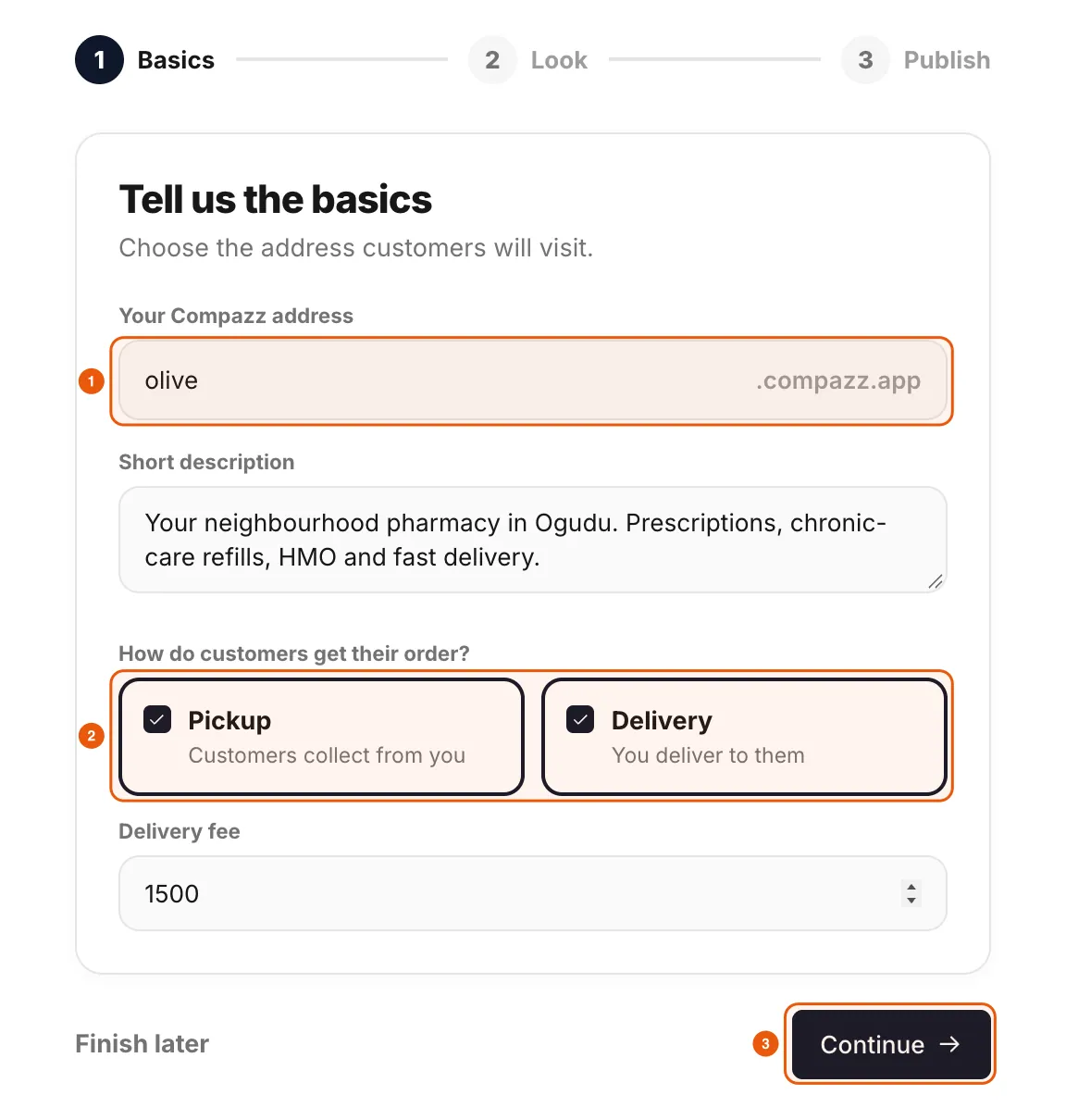
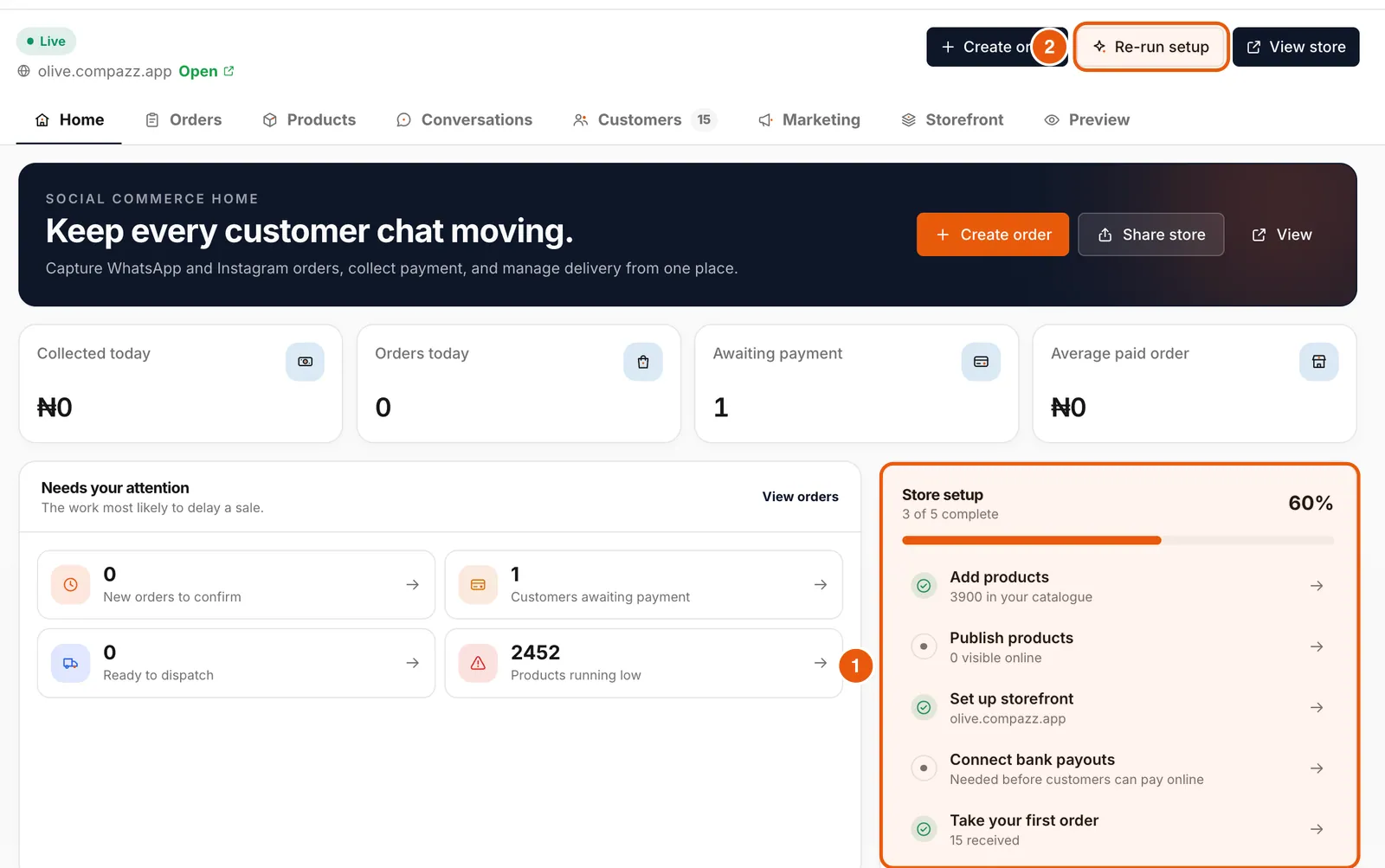
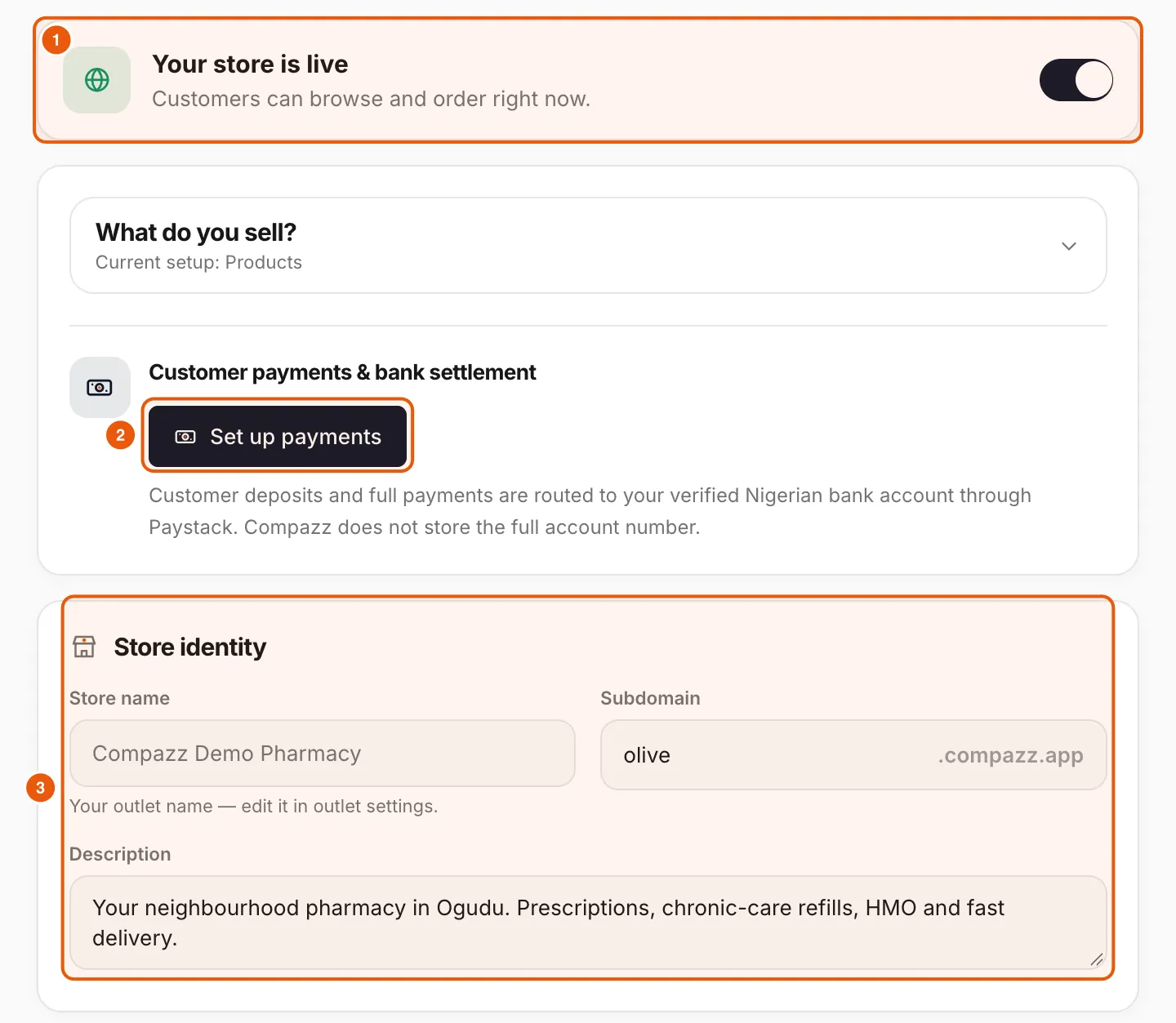
In the dashboard, open Online Store. The first time, the setup wizard opens automatically (later, use Re-run setup). Choose your Compazz address, write a one-line description and choose how customers get their order.
- 1Type your address: it becomes yourname.compazz.app.
- 2Write a short description customers will see under your name.
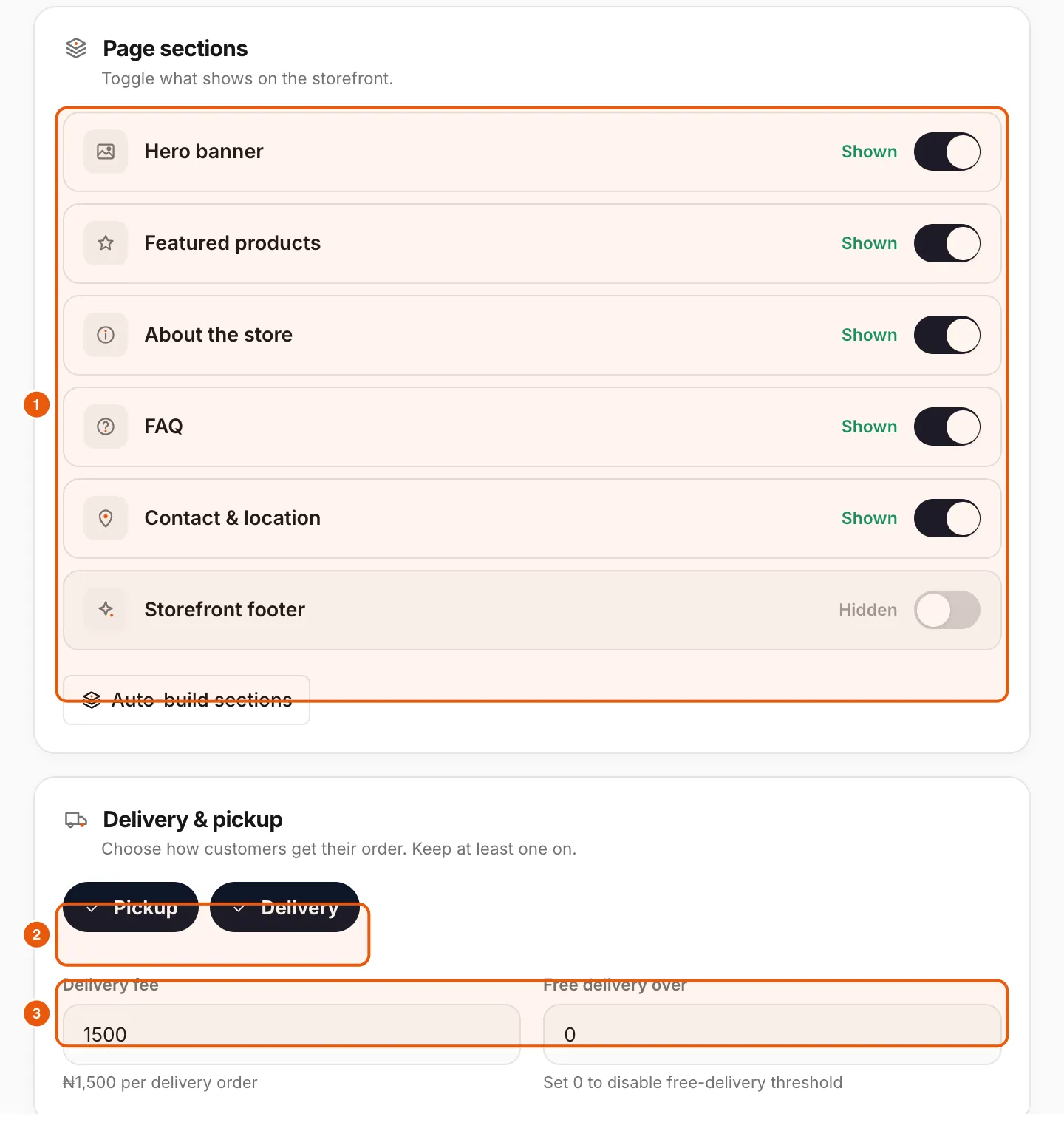
- 3Tick Pickup, Delivery or both, and set the delivery fee (0 for free delivery).
- 4Tap Continue.
Step 2: Look
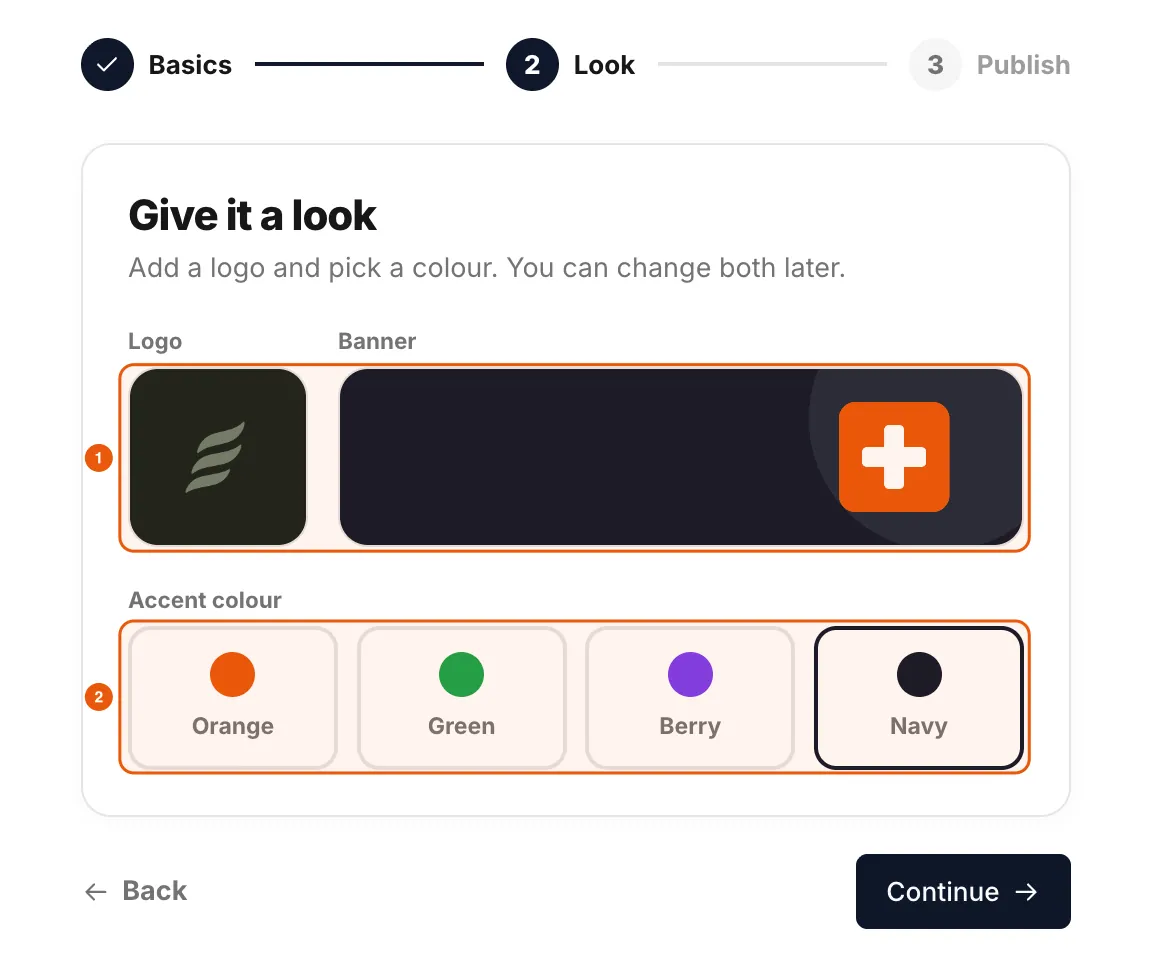
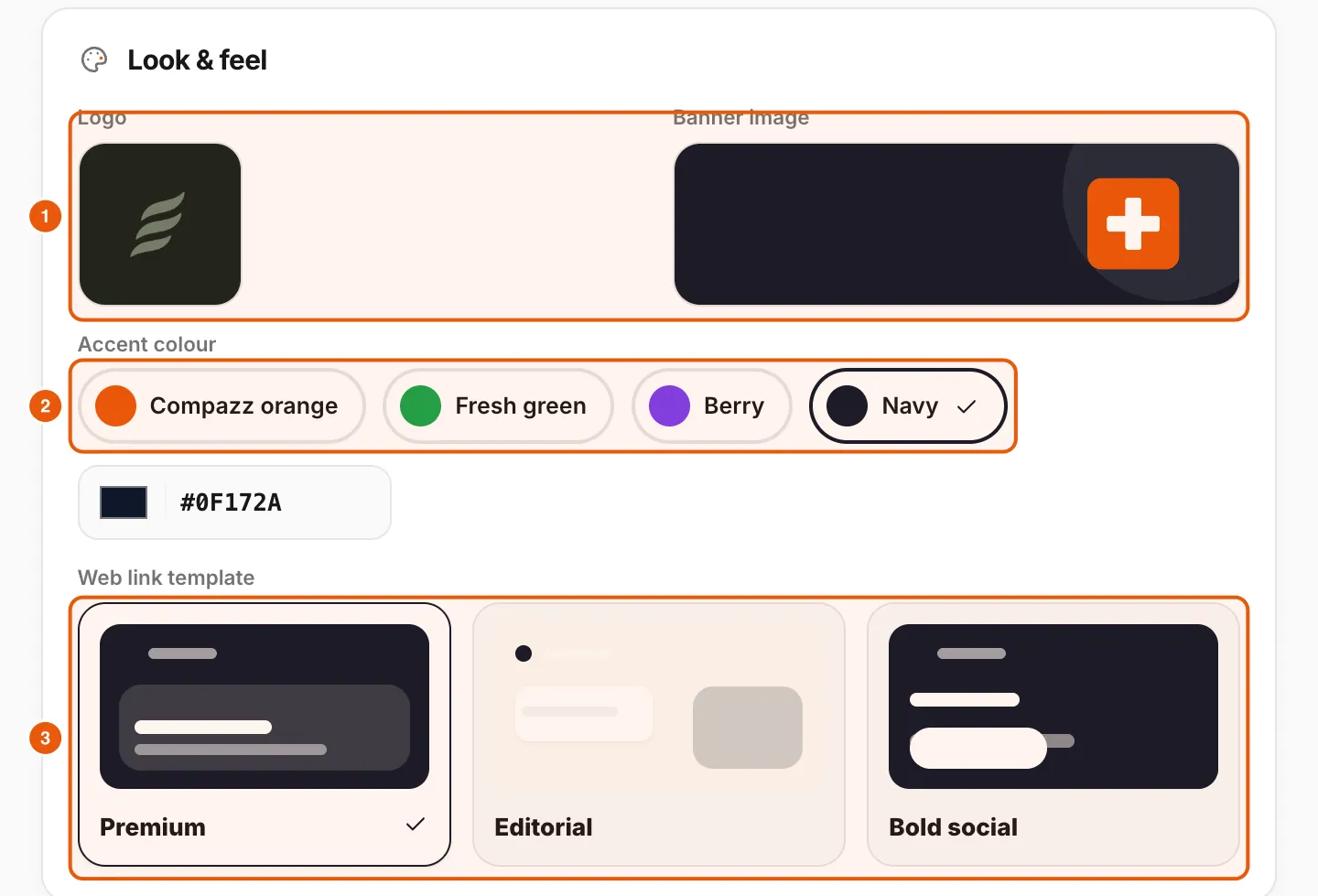
Upload your logo and a wide banner, and pick an accent colour (Orange, Green, Berry or Navy). You can change all of these later.
Step 3: Publish
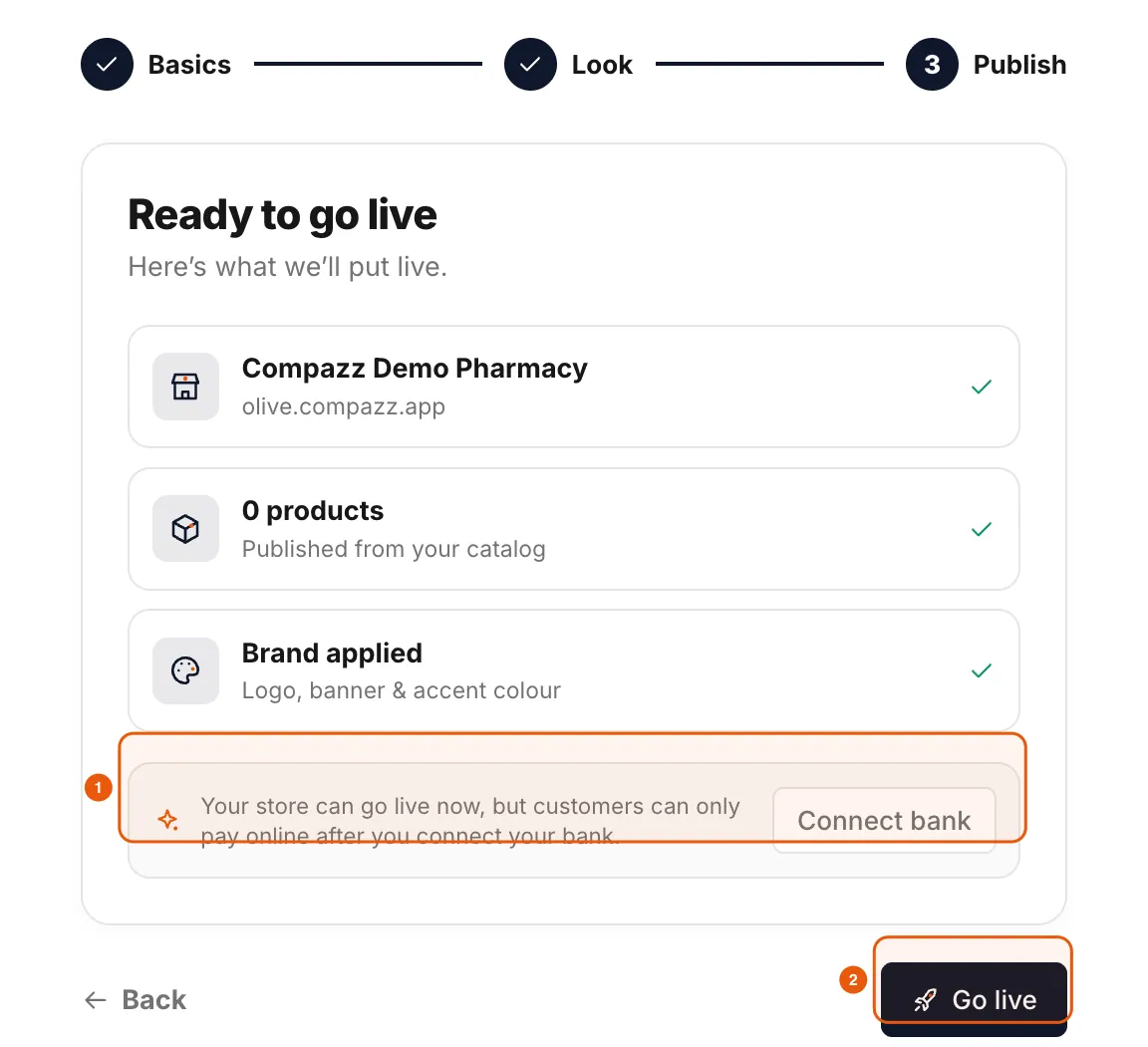
Review what goes live and tap Go live. You can go live before connecting a bank, but customers can only pay online after you do.
Follow the Store setup checklist
The Online Store home shows today’s sales, what needs attention, and a Store setup checklist: Add products, Publish products, Set up storefront, Connect bank payouts and Take your first order.
Publish products
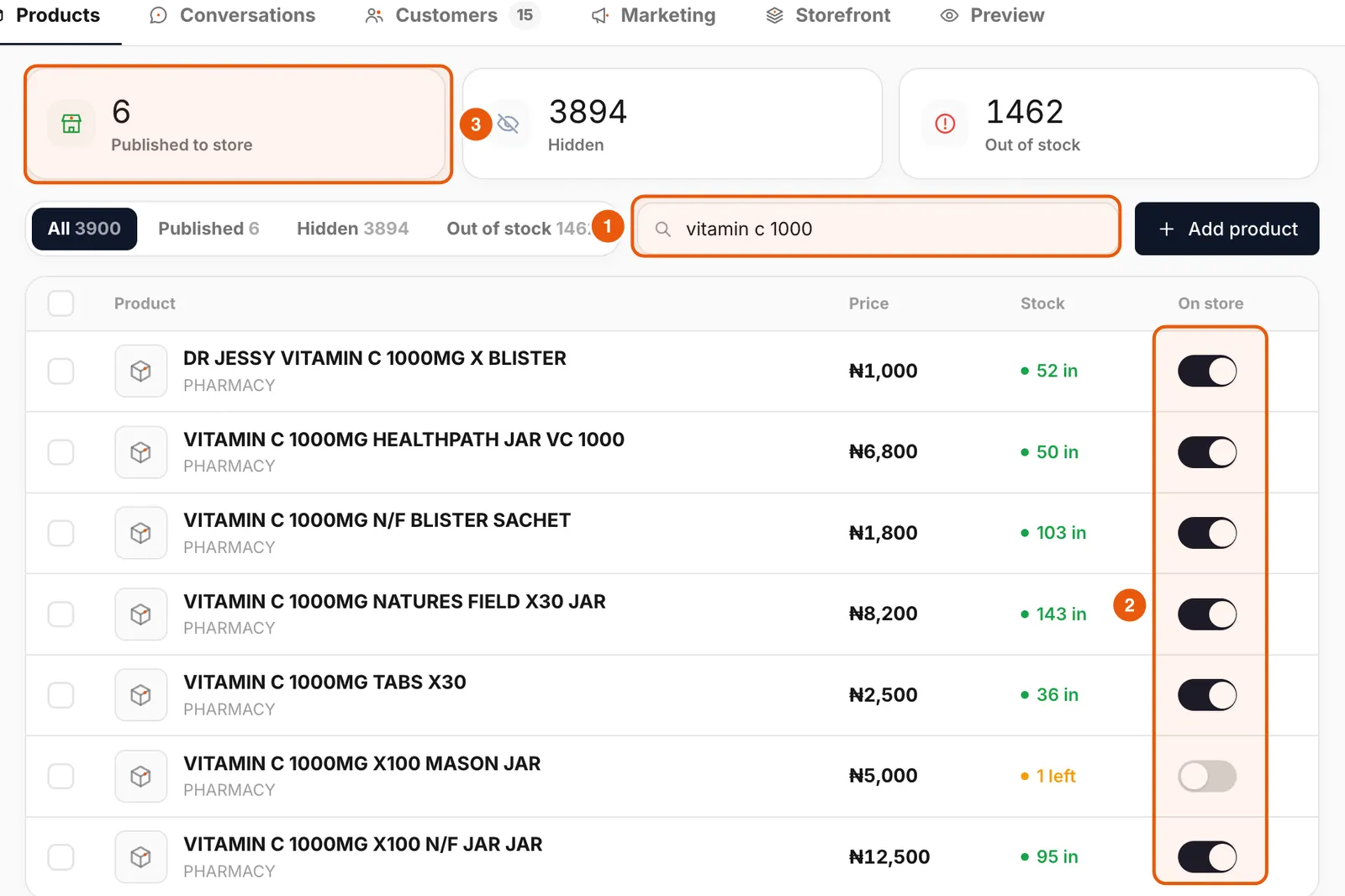
The tiles at the top count Published, Hidden and Out of stock items.
- 1Open the Products tab. Your POS products are all here, hidden by default.
- 2Search for a product and switch On store on. It is live immediately.
- 3Publish many at once: tick the boxes and use the bulk action.
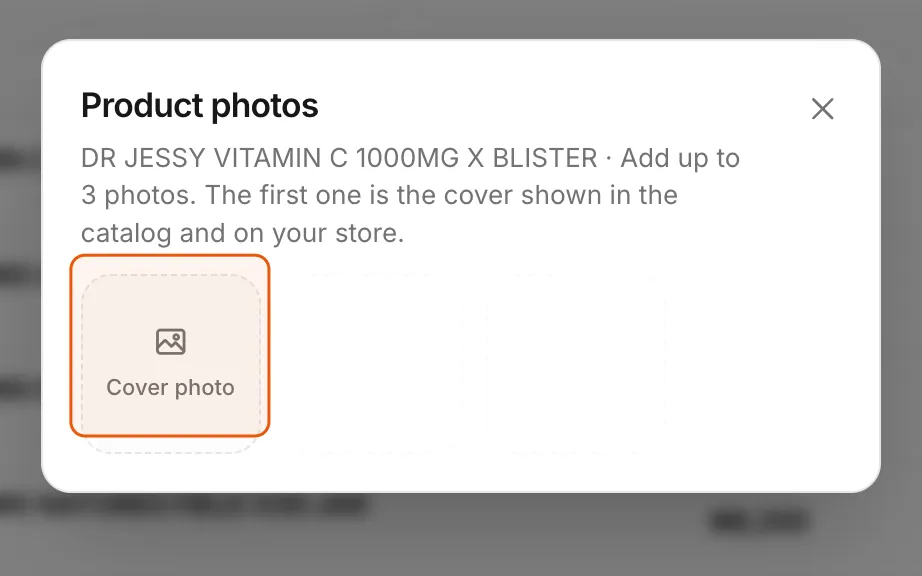
- 4Tap a product’s image box to add up to 3 photos. The first is the cover.
Brand your storefront and set delivery
The Storefront tab holds everything customers see: store identity, logo, banner and colour, link template, footer contact details, page sections, delivery and pickup, and custom domain.
Connect bank payouts
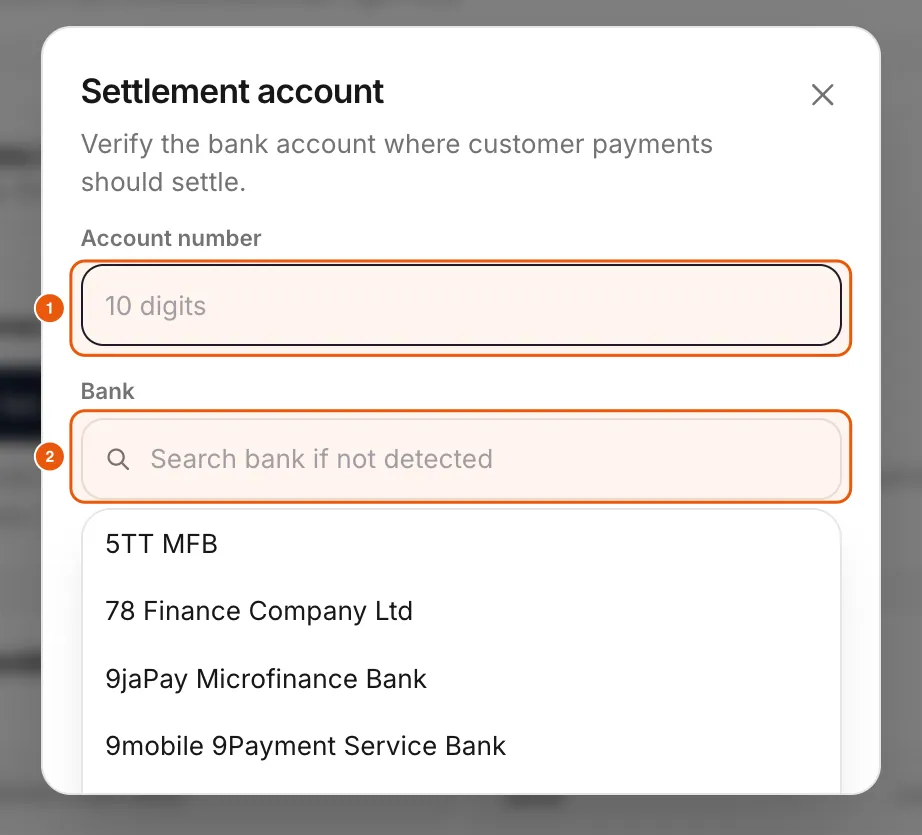
Tap Set up payments, enter your 10-digit account number, choose your bank and tap Verify account. Compazz verifies the account with its payment partner and stores only what is needed to route settlement, never the full account number.
Preview, test and share
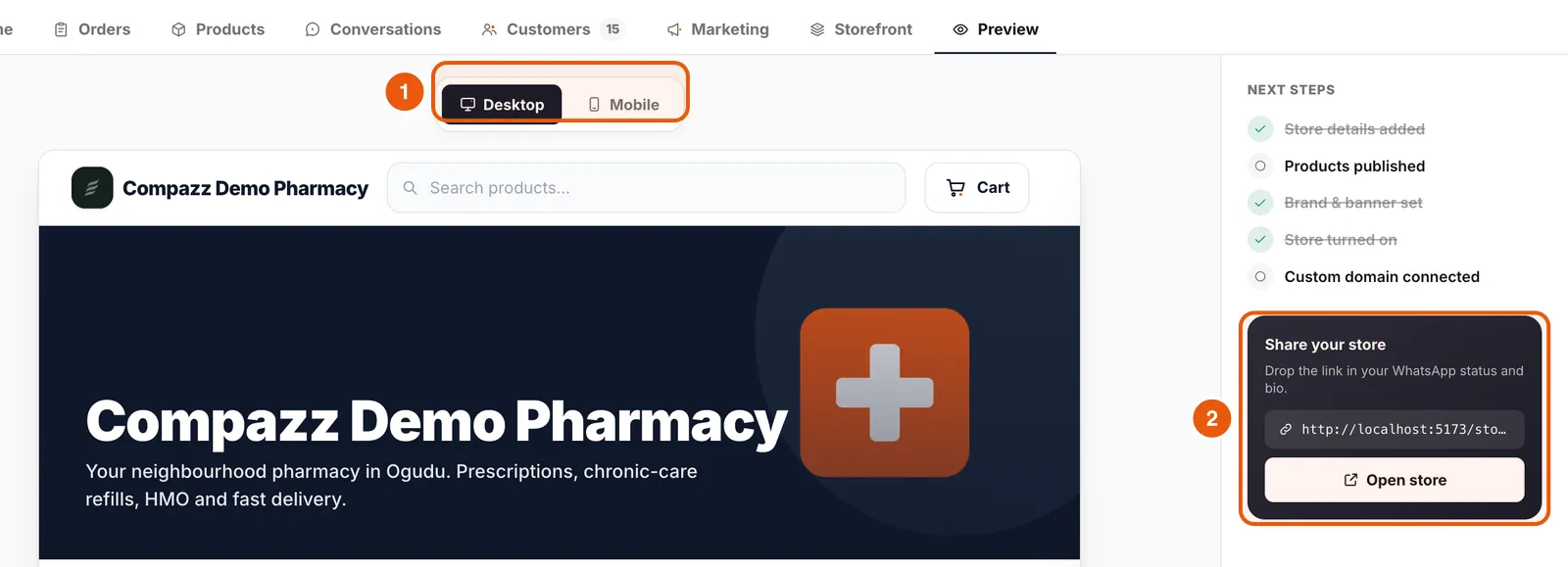
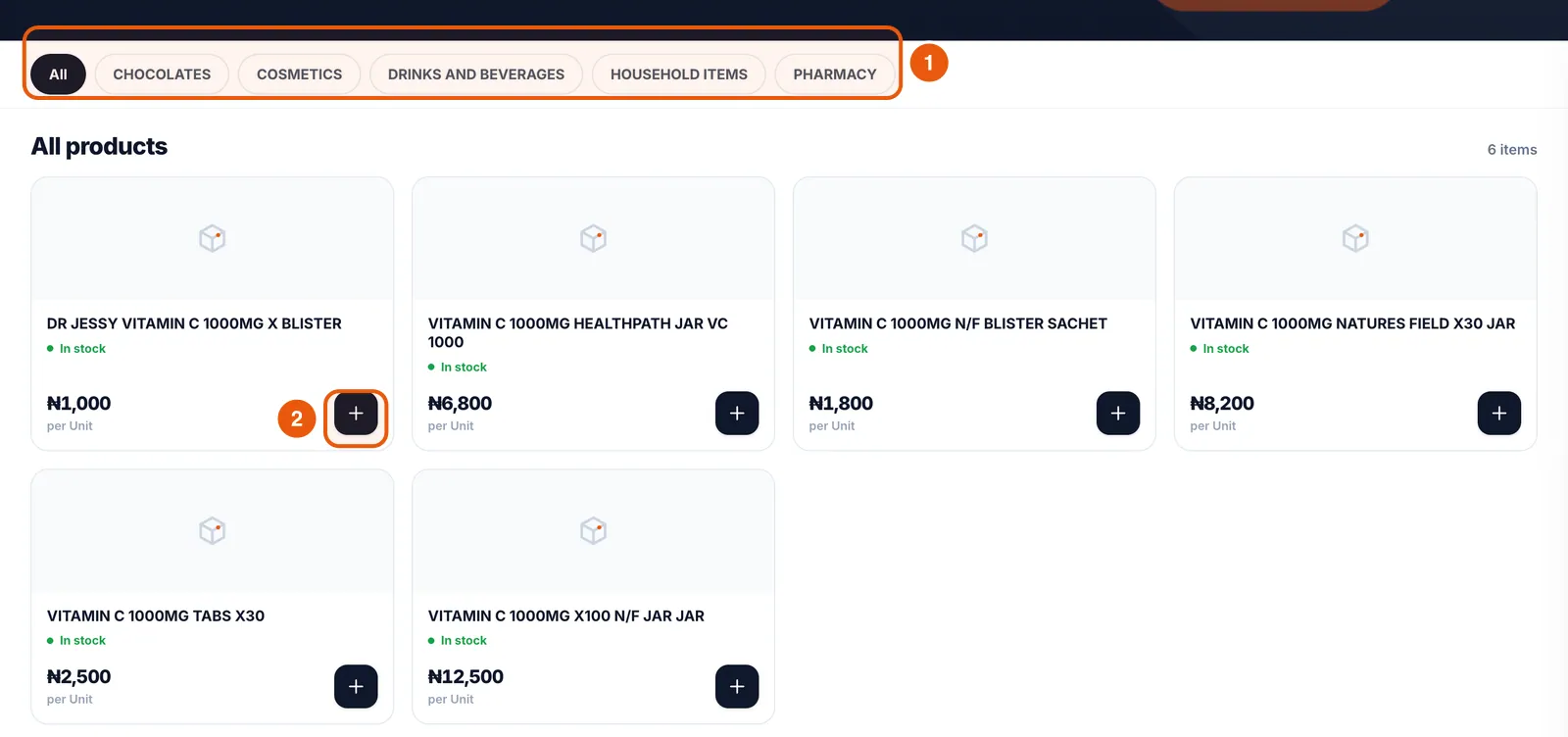
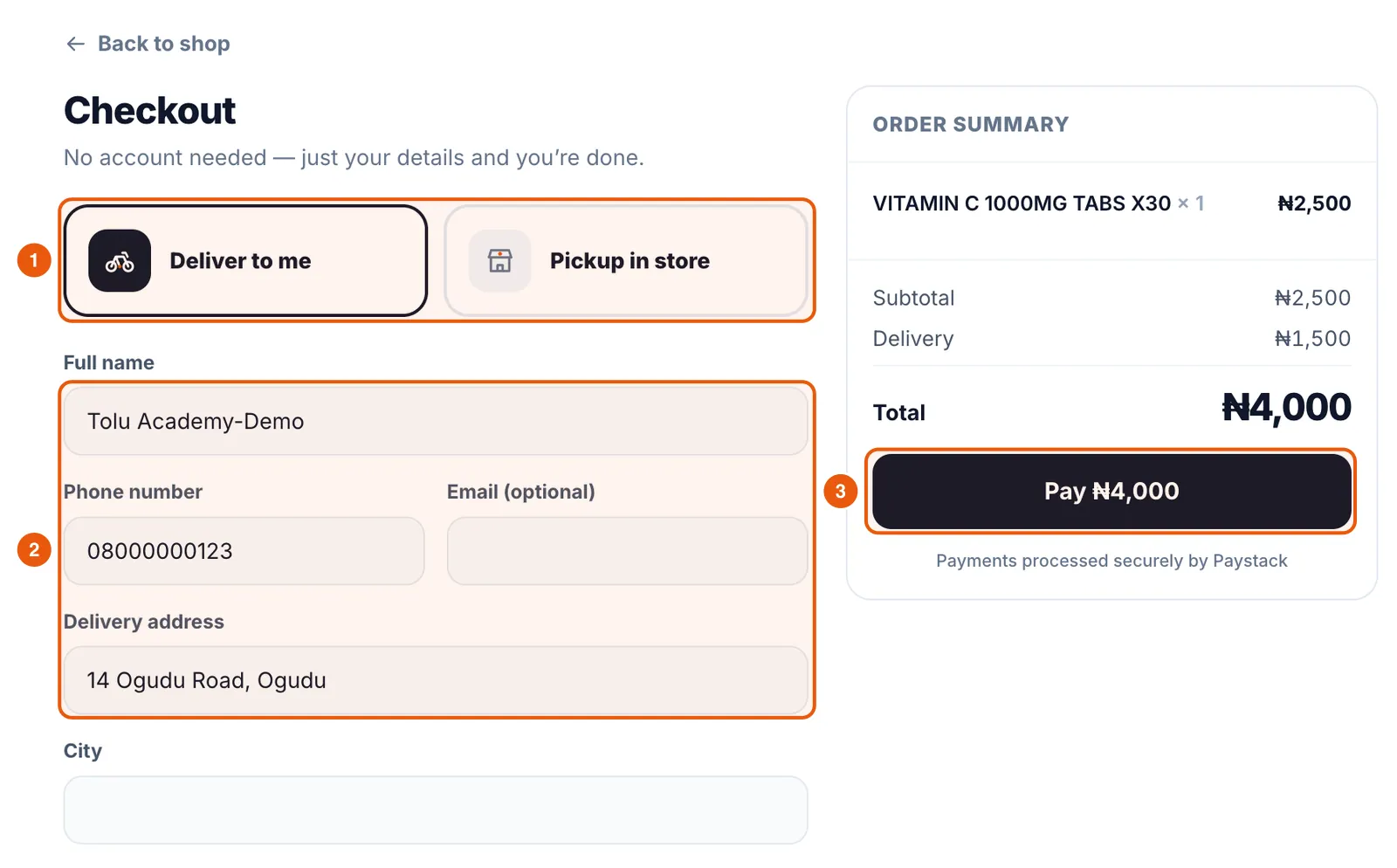
The Preview tab shows your store on desktop or mobile, a Next steps list and your store link with Open store. Open it, search a product, add it to the cart and go to checkout, exactly as a customer would.
Frequently asked questions
Is the online store connected to my POS stock?
Yes. Products, prices and stock come from your Compazz catalogue. When something sells out at the counter, it shows as sold out online.
Can I use my own domain?
Yes. In the Storefront tab, use Custom domain → Connect to point your own domain at your store.
How do I get paid?
Connect your bank in Set up payments. Online payments are processed by Compazz’s payment partner and settle into your verified account.
Ready to do this in your own shop?
Start free and follow this guide step by step, or book a call and we’ll set it up with you.
Keep learning