How to read your Compazz sales reports
Use the dashboard Reports to see total sales, transactions, average basket, expenses, net revenue, payment mix, top sellers and slow movers, and decide what to do next.
Why it matters
Five numbers, read every week, run a better shop than any gut feeling.
See the whole month
Sales, transactions, basket size, expenses and profit on one screen.
Know your winners
Top sellers tell you what never to run out of. Slow movers tell you what to stop buying.
Follow the money
Payment mix shows how customers pay, so you know how much cash to expect.
What you’ll be able to do
- Read the monthly scorecard
- Use payment mix and expenses
- Act on top sellers and slow movers
Read the scorecard
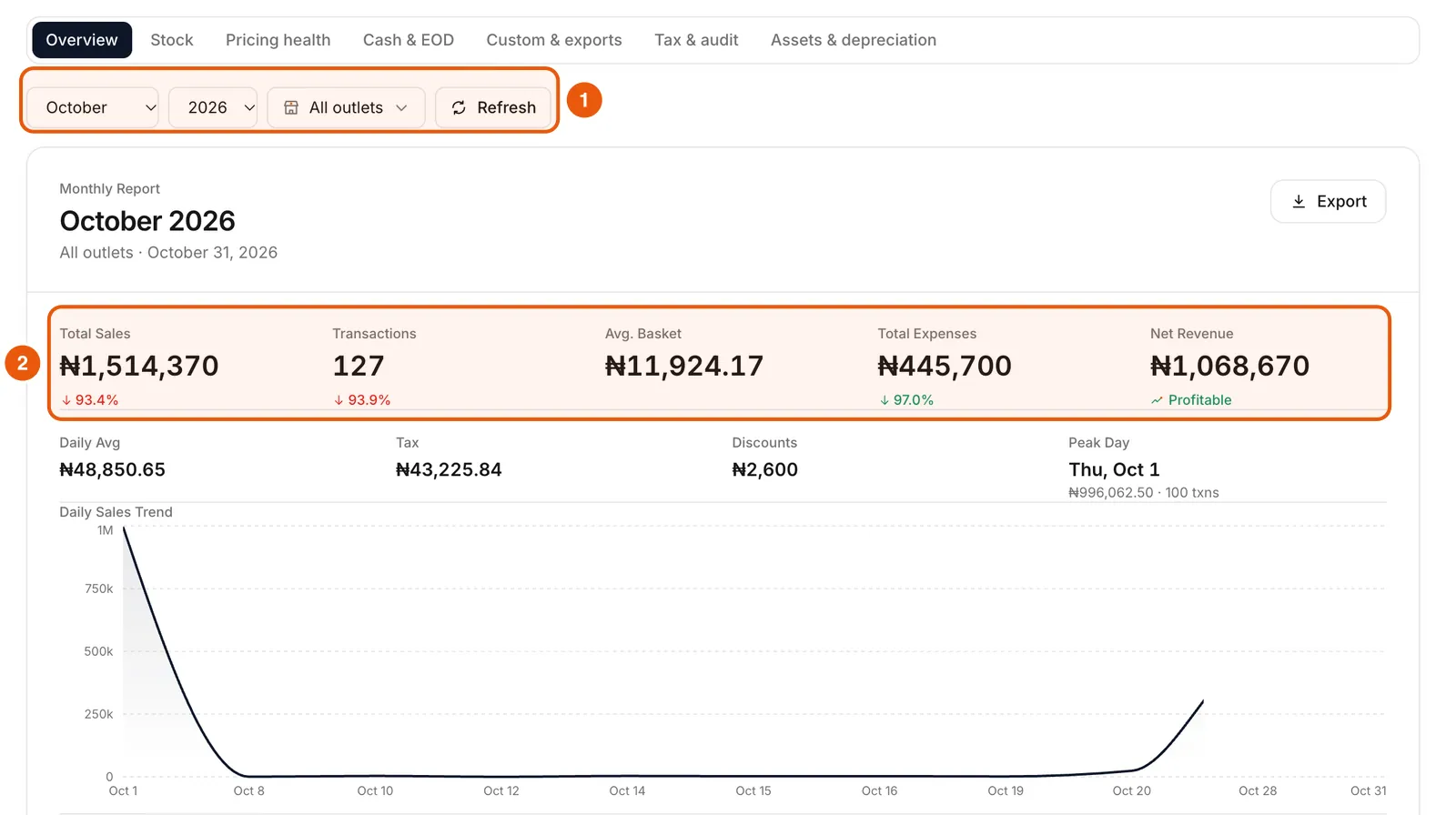
Open Reports in the dashboard and choose the month, year and outlet. The top row shows Total Sales, Transactions, Avg. Basket, Total Expenses and Net Revenue, each with the change from the previous period. Below are the daily average, tax, discounts and your peak day.
Payment methods and expenses
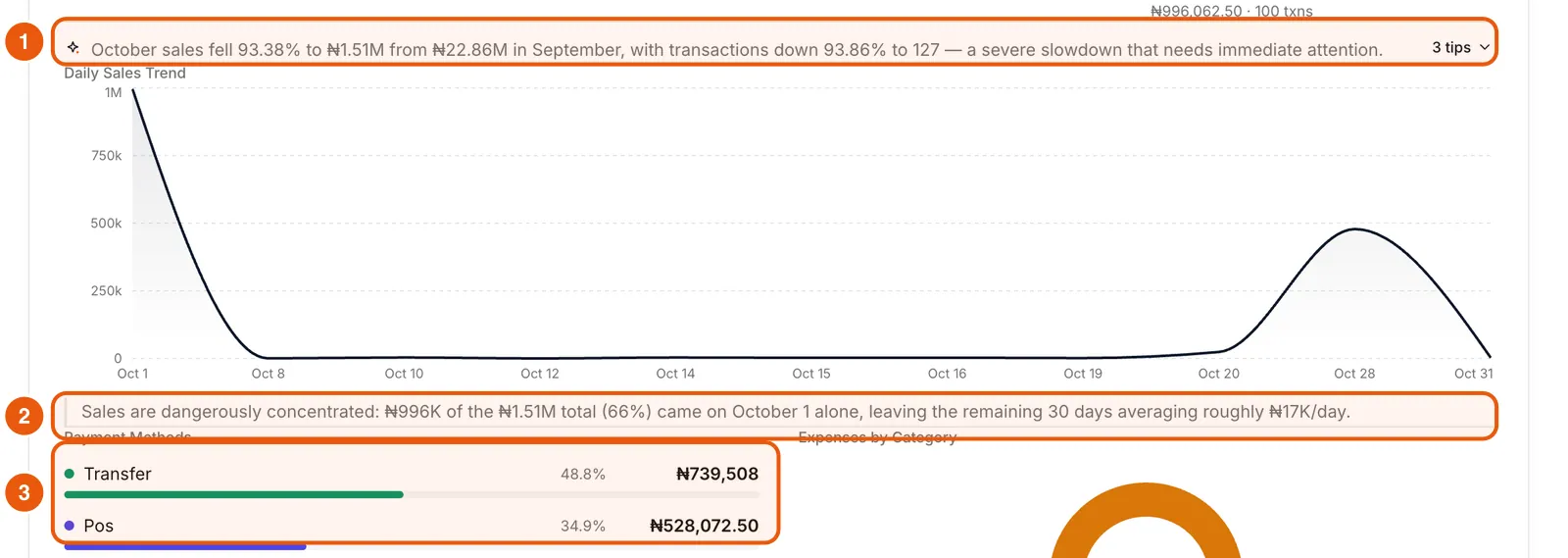
Payment Methods splits revenue between transfer, card terminal, cash and credit. Expenses by Category shows where money went: rent, transport and so on.
Top sellers and slow movers
Scroll down for Weekly Performance, Top Selling Products and Slow Moving Products. Make sure top sellers have reorder levels set, and cut or mark down slow movers.
Finish with one decision
A report is only useful if it changes something. Each week pick one action: reorder a top seller earlier, move a slow mover to the counter, or find out why basket size dropped.
Ready to do this in your own shop?
Start free and follow this guide step by step, or book a call and we’ll set it up with you.
Keep learning