How to do a stocktake in Compazz POS, step by step
Count stock by department or by scanning, see variances as you go, give every difference a reason, pause and resume, then apply the count in one tap.
Why it matters
A good stocktake turns “I think we’re losing stock” into “we lost 3 jars of Vaseline, here’s why”.
Count in sections
Count one department or shelf at a time. You do not need to close the shop.
Variances explained
Every difference gets a reason (damaged, theft, short delivery), so patterns jump out.
Pause any time
Hold a count and finish it later, even on another device.
What you’ll be able to do
- Count a department by typing or ticking
- Count by scanning barcodes
- Review differences and set reasons
- Hold, resume and apply a stocktake
Plan the count
Pick a quiet time and a section. Cycle counting (one department at a time, every week) beats a once-a-year marathon. Avoid receiving stock in that section while you count.
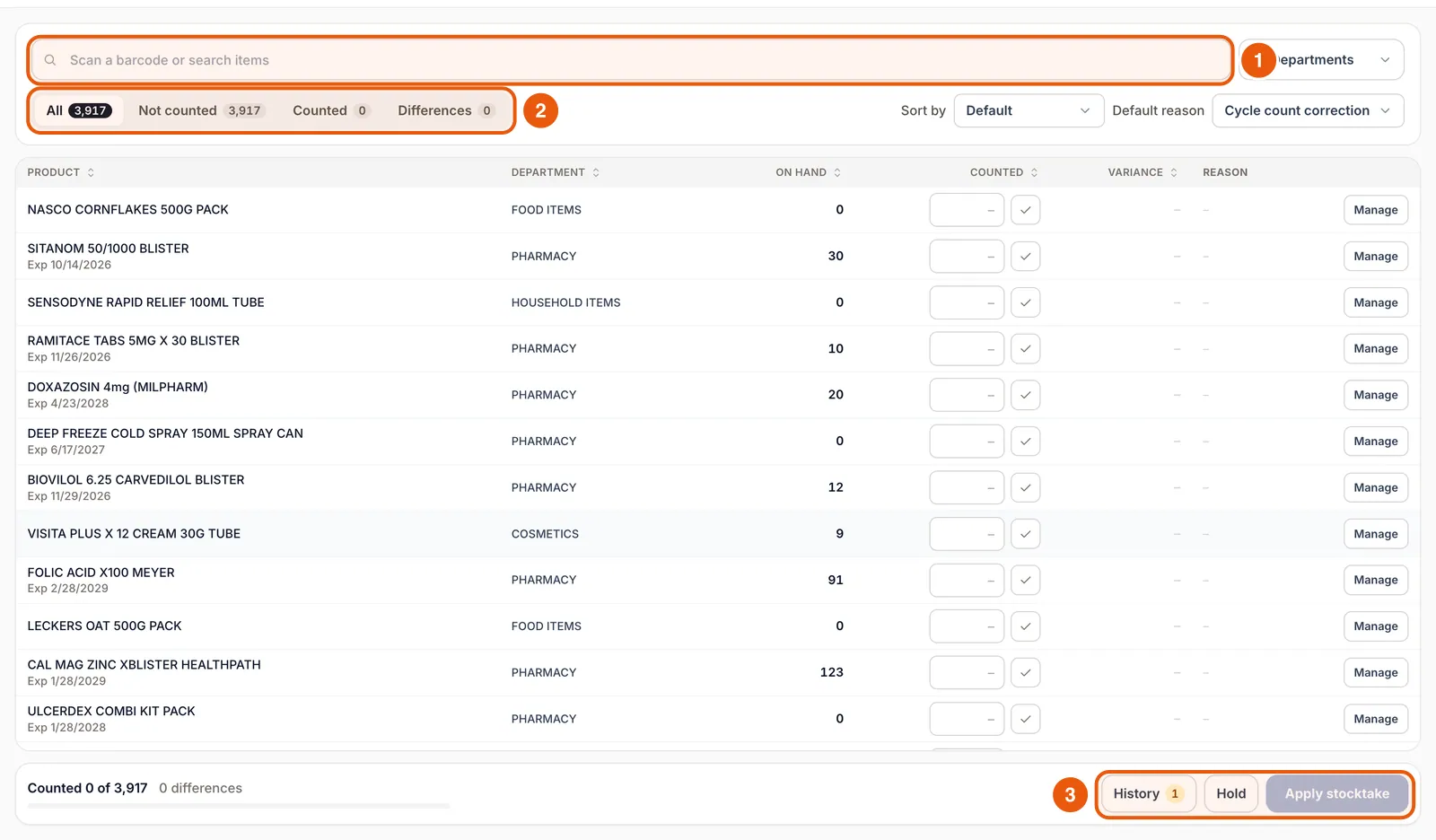
Choose the department
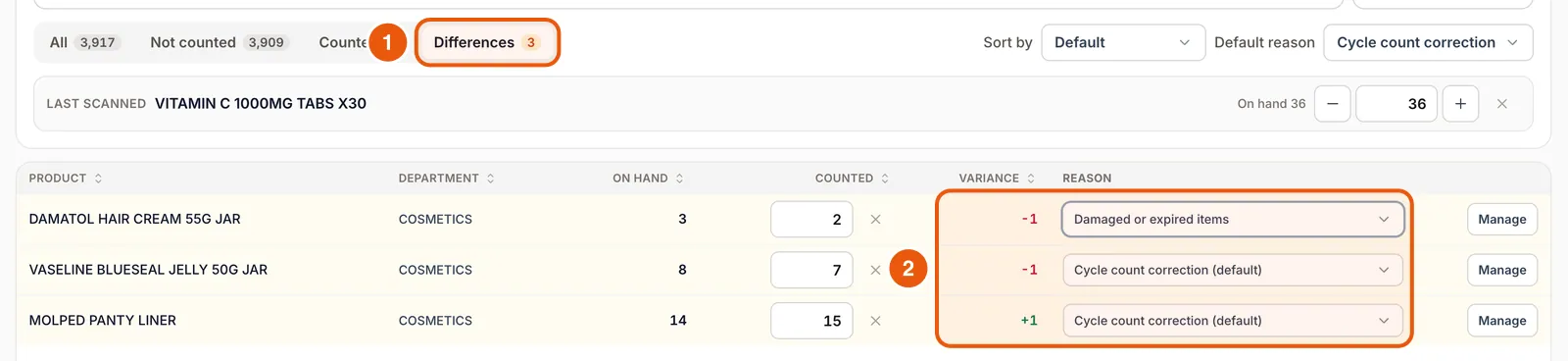
Use the department filter at the top right to limit the list to the shelf you are counting. The tabs show how many items are not counted, counted and different.
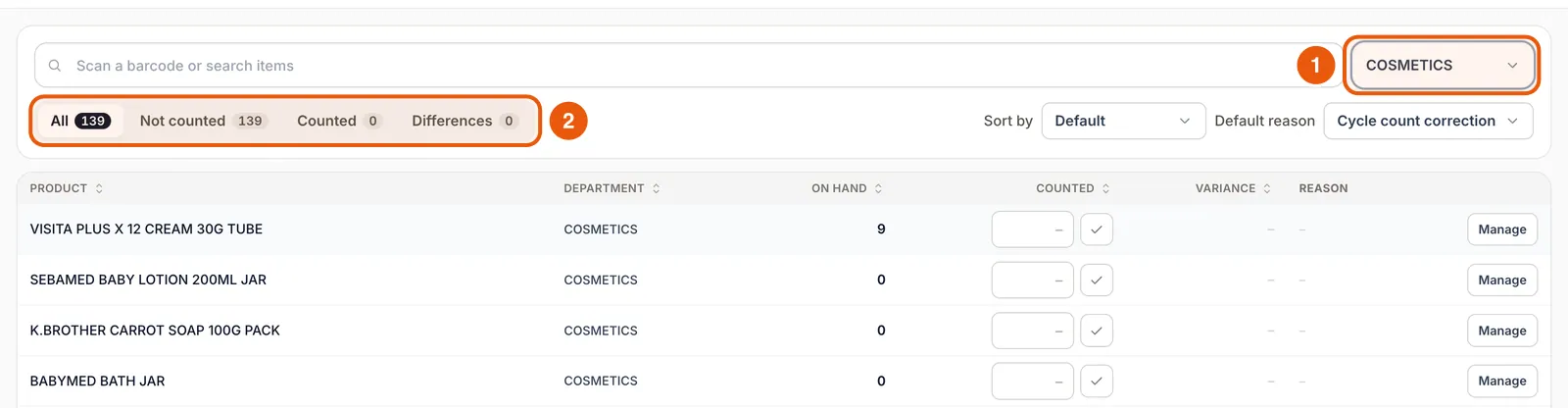
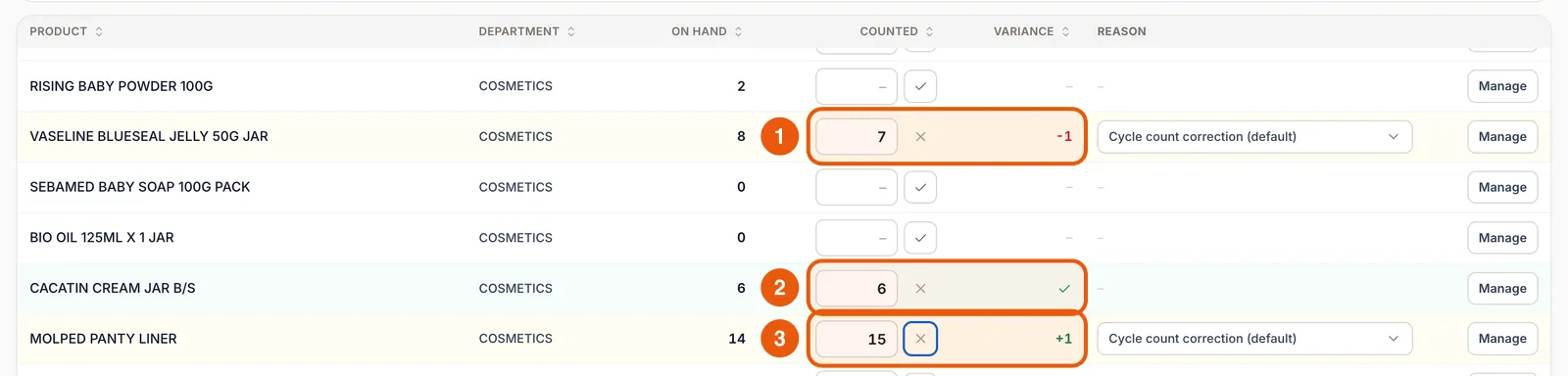
Enter counts
- 1Type the quantity you counted in the Counted box.
- 2If the shelf matches the system exactly, tap the ✓ next to the box instead of typing.
- 3Any difference shows immediately in Variance (for example −1 or +1) and gets the default reason.
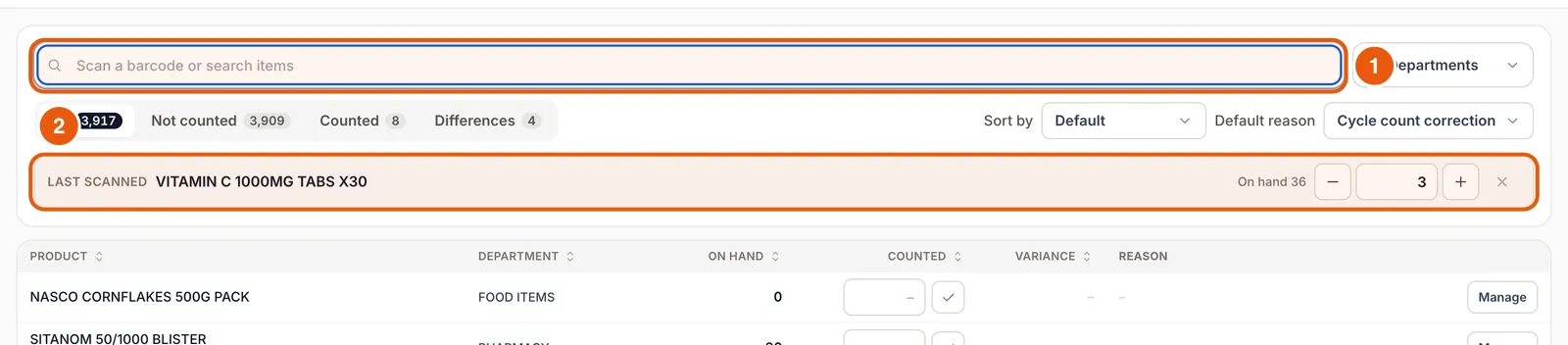
Or count by scanning
Click the search box and scan. Each scan adds 1 to that item’s count and shows it in the Last scanned bar, where − and + fix a miscount. If the item belongs to another department, Compazz tells you to switch to All Departments.
Review differences and set reasons
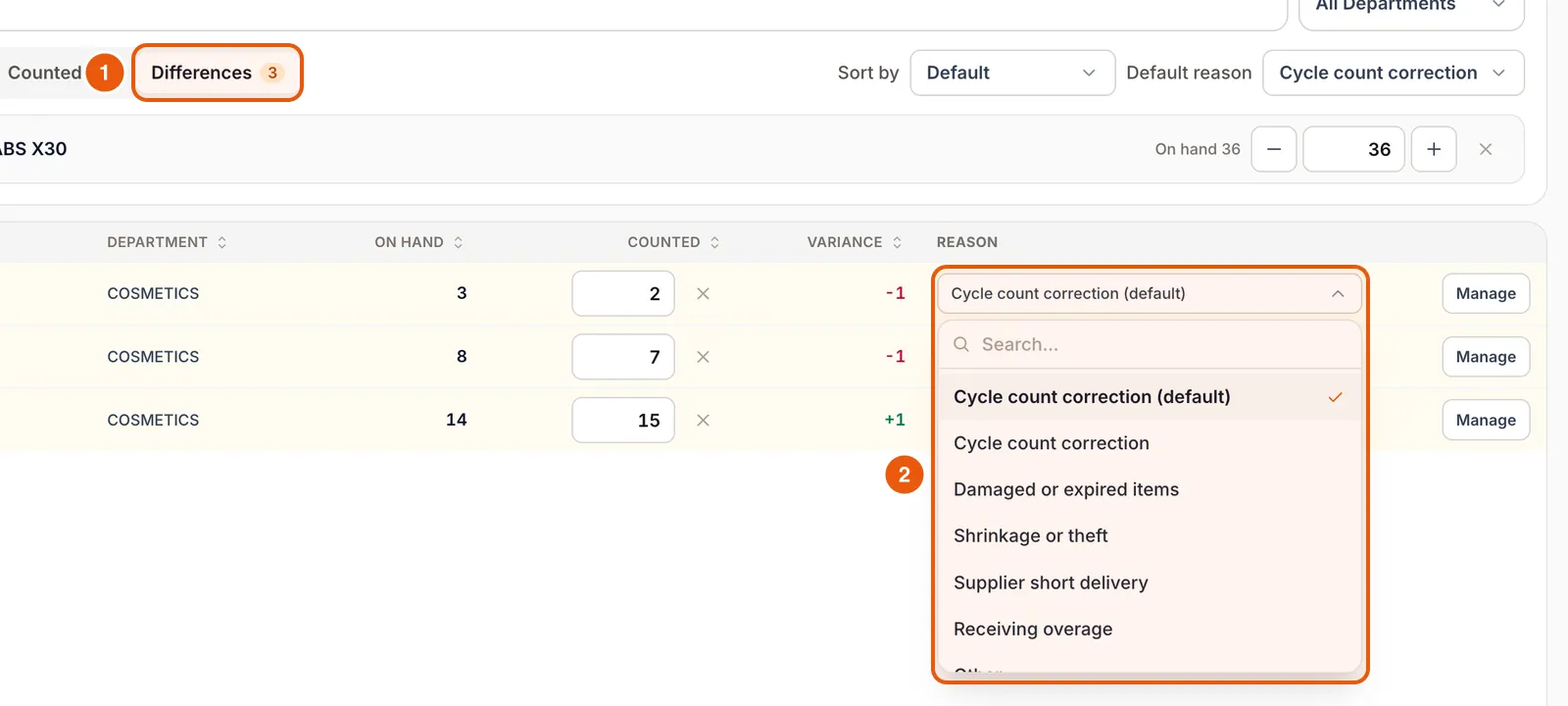
Open the Differences tab. Recount anything surprising before you explain it. Then pick a reason for each line: Cycle count correction, Damaged or expired items, Shrinkage or theft, Supplier short delivery, Receiving overage or Other. Default reason sets the reason for every line at once.
Hold and resume
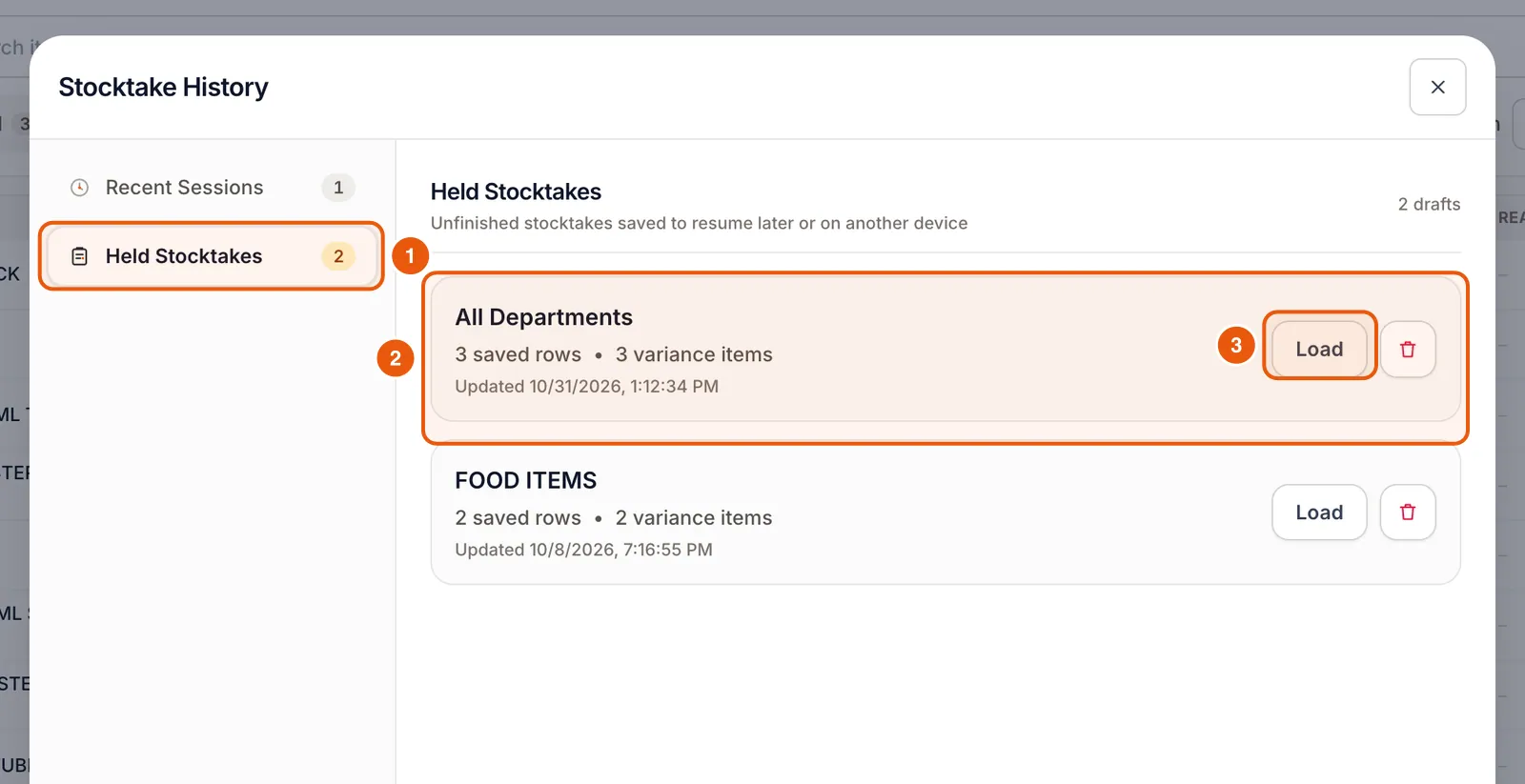
Out of time? Tap Hold. Your counts are saved as a held stocktake. Open History → Held Stocktakes and tap Load to carry on, on this or another device.
Apply the stocktake
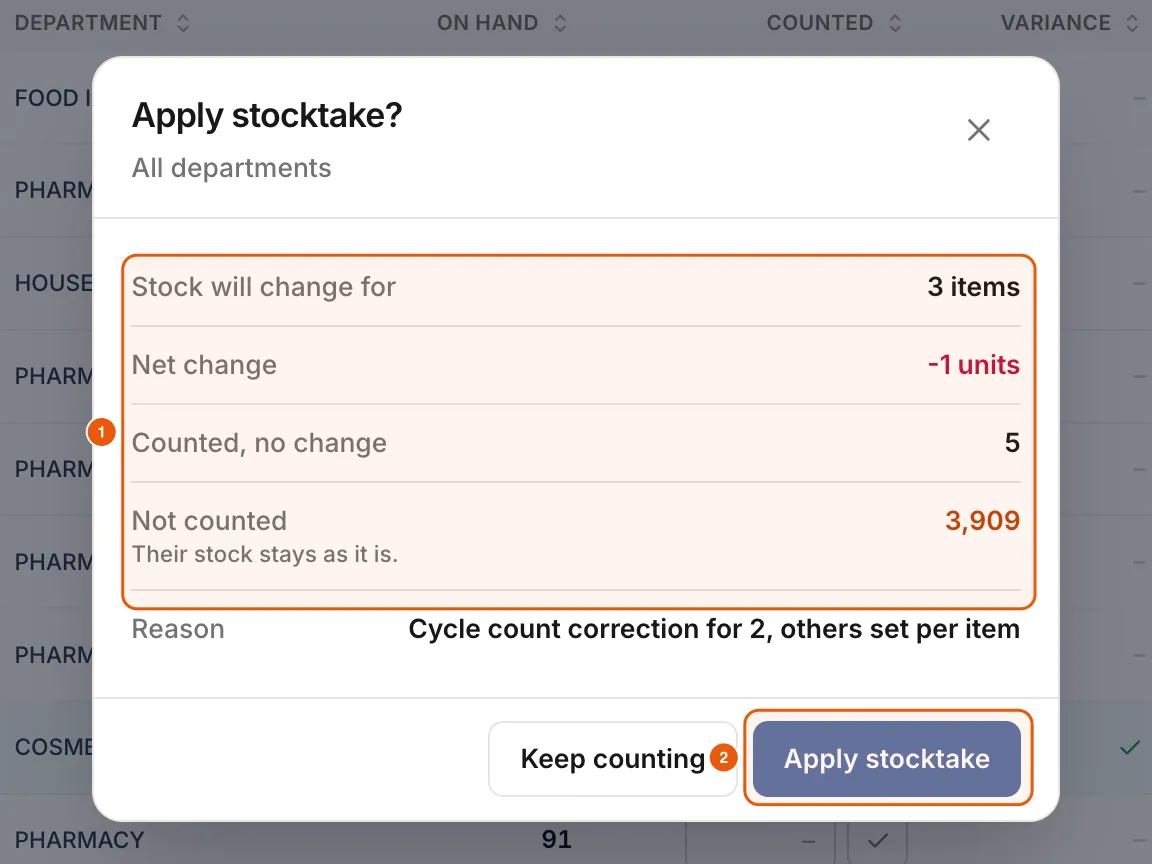
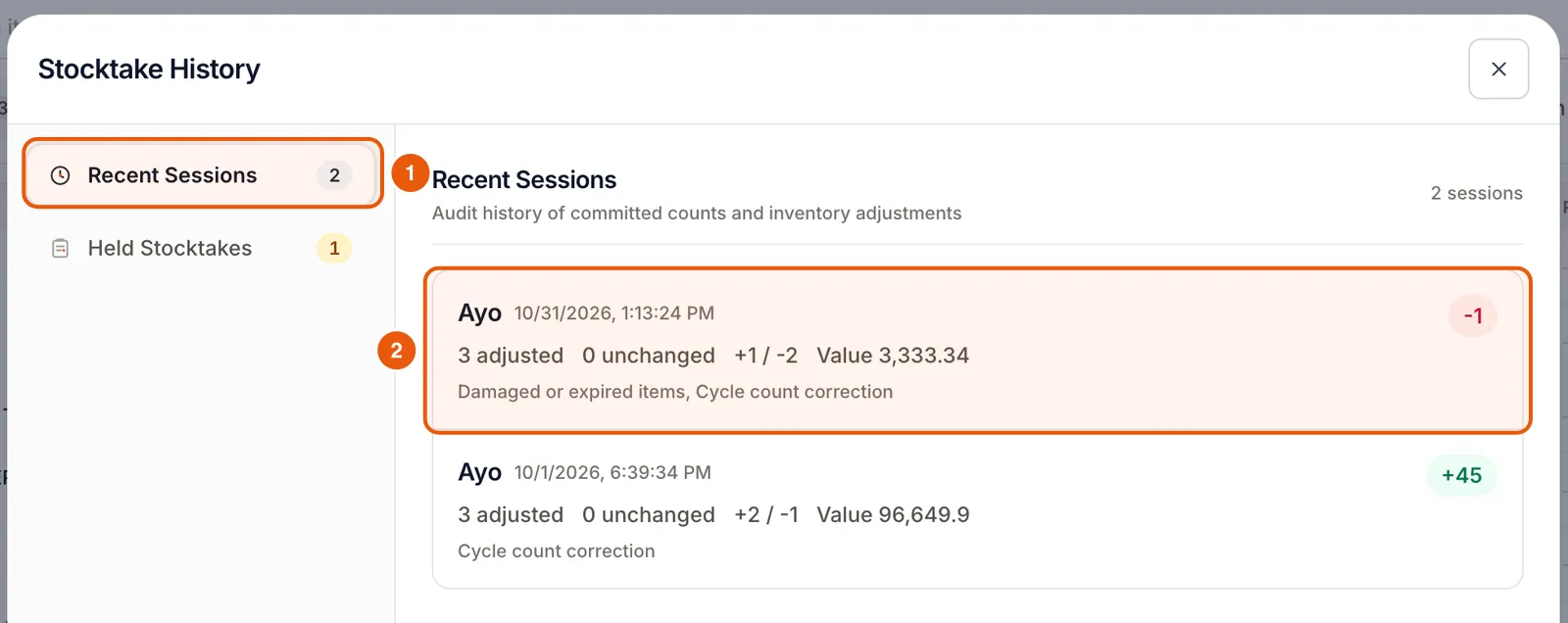
Tap Apply stocktake. The confirmation shows how many items will change, the net change, items counted with no change and items not counted (their stock stays as it is). Tap Apply stocktake to update stock.
Frequently asked questions
Do I have to count everything at once?
No. Anything you do not count keeps its current stock. Count one department at a time and apply each count separately.
What if sales happen while I am counting?
Compazz warns you if stock levels changed while you were counting, so you can recount those items before applying.
How often should I do a stocktake?
Count high-value and fast-moving departments weekly, and the rest monthly. Small, frequent counts catch problems early.
Ready to do this in your own shop?
Start free and follow this guide step by step, or book a call and we’ll set it up with you.
Keep learning